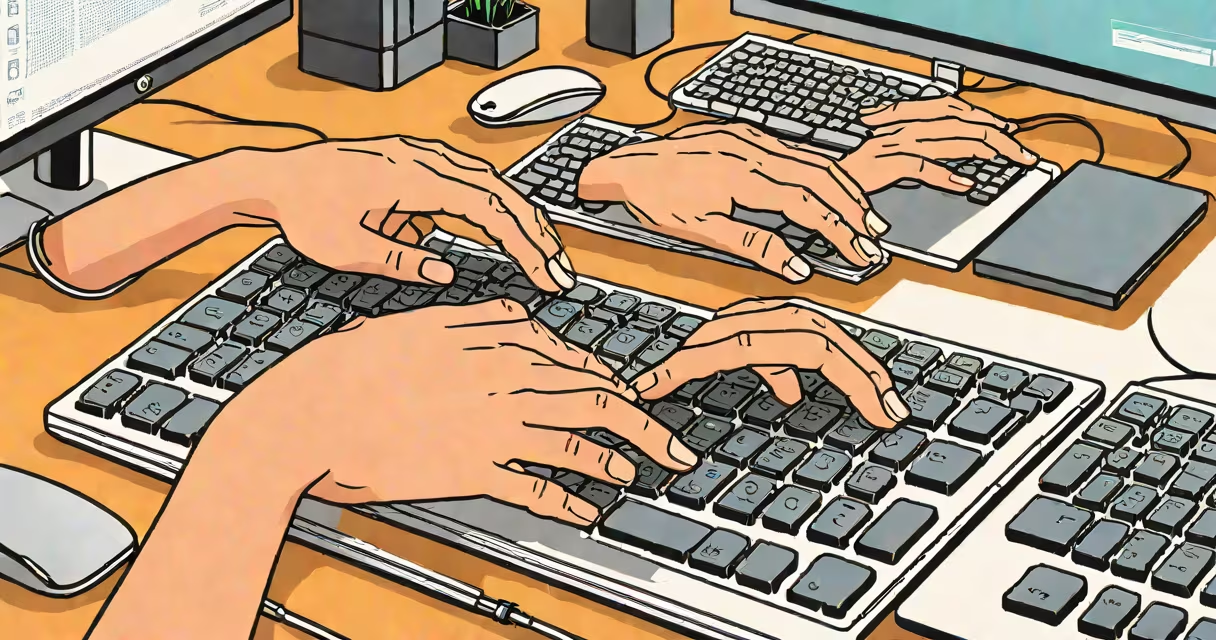
Operating a computer for beginners means learning to power on the device, use a mouse and keyboard to go through the desktop, open programs, manage files, and shut down safely. The process requires no prior experience-just attention to basic physical controls and visual cues.
Modern computers run on operating systems like Windows 11, macOS Ventura, or Linux distributions such as Ubuntu. These systems provide a graphical interface with icons, windows, and menus. You interact through a mouse or trackpad and a keyboard. The core actions-clicking, typing, dragging, and scrolling-are consistent across platforms.
Start by placing your computer on a stable surface with proper ventilation. Plug the power cable into the wall and the computer's power port. Press the power button, usually located on the front or side of the tower or on the laptop's keyboard. Wait 30 seconds for the system to boot. A login screen appears; enter your password or use biometric authentication if set up.
The desktop is the main screen you see after logging in. It displays icons for files, folders, and applications. On Windows, the taskbar sits at the bottom. On macOS, the Dock appears at the bottom or side. Both show running apps and quick access tools.
Use the mouse to move the cursor. Click once to select an icon. Double-click to open a file or program. Right-click to access context menus with options like "Open," "Rename," or "Delete." Dragging involves clicking and holding the left mouse button while moving the cursor to relocate items or show text.
For example, to open a document, locate the file icon on the desktop. Double-click it. If the file is associated with a program-like a Word document with Microsoft Word-it will launch automatically. If not, the system may prompt you to choose an app.
The keyboard inputs letters, numbers, and commands. The space bar adds a blank between words. The Enter key confirms selections or submits forms. The Tab key moves focus between fields. The Esc key cancels actions or closes pop-ups.
Common keyboard shortcuts speed up tasks. On Windows, Ctrl+C copies selected text; Ctrl+V pastes it. On macOS, Command+C and Command+V serve the same purpose. Use Alt+Tab (Windows) or Command+Tab (macOS) to switch between open programs quickly.
Mouse gestures include scrolling with the wheel to move through web pages or documents. Click and drag to show text or move icons. Holding Shift while selecting multiple items allows bulk operations. For touchpads on laptops, use two fingers to scroll and pinch to zoom.
Files store data-documents, photos, videos. Folders organize them. Create a new folder by right-clicking on the desktop, selecting "New" > "Folder," then naming it (e.g., "School Work"). Drag files into the folder to group them.
To save a file, open a program like Notepad or Word. Type your content. Go to File > Save As. Choose a location-such as the Documents folder-and give the file a name. Click Save. The file appears in the chosen folder.
Deleting a file removes it from view but not necessarily from storage. Deleted files go to the Recycle Bin (Windows) or Trash (macOS). Empty the bin to permanently remove them. To restore, open the bin, right-click the file, and select "Restore."
| Task | Windows | macOS |
|---|---|---|
| Open a file | Double-click icon | Double-click icon |
| Copy text | Ctrl+C | Command+C |
| Switch apps | Alt+Tab | Command+Tab |
| Close window | Alt+F4 | Command+W |
A common mistake among beginners is assuming that deleting a file removes it from the hard drive entirely. In reality, the data remains until overwritten. Data recovery software can retrieve deleted files unless they've been permanently erased via secure delete tools.
Another error is leaving the computer on overnight. This wastes energy and increases wear on components. Always shut down properly. Click the Start menu (Windows) or Apple logo (macOS), then select "Shut Down." Do not unplug the power cord during operation.
Some believe that pressing the power button abruptly shuts down the system safely. This is false. Forced shutdowns can corrupt files or damage the operating system. Always use the proper shutdown sequence.
Another myth is that antivirus software makes the computer immune to threats. While essential, no tool prevents all attacks. Avoid downloading software from unknown websites. Stick to official app stores or trusted developer sites.
I once helped a friend troubleshoot a frozen computer. She had clicked a suspicious link in an email. The system froze after launching a malicious script. After booting into safe mode and scanning with Malwarebytes, we removed the threat. The incident highlighted that even basic users can fall victim to social engineering.
If the computer fails to start, check the power connection and ensure the monitor is on. Try plugging the power cable into a different outlet. If the screen stays black, the issue may be hardware-related.
For software problems-like a missing icon or a program crashing-restart the computer. If issues persist, search online using the exact error message. Microsoft Support and Apple Support offer free troubleshooting guides.
Beginners often feel overwhelmed by unfamiliar terms. "Desktop" doesn't mean a physical desk. "Boot" refers to starting the system. "Drive" is a storage unit-C:\ on Windows, Macintosh HD on macOS. Understanding these terms reduces confusion.
Practice with a spare computer or virtual machine. Try opening a browser, searching for "weather in Seattle," and saving the page. Use Notepad to type a short note and save it to the desktop. These small actions build confidence.
Learning how to operate a computer for beginners is not about memorizing commands. It's about building familiarity through repetition. With consistent practice, using a computer becomes intuitive. The goal isn't perfection-it's progress.