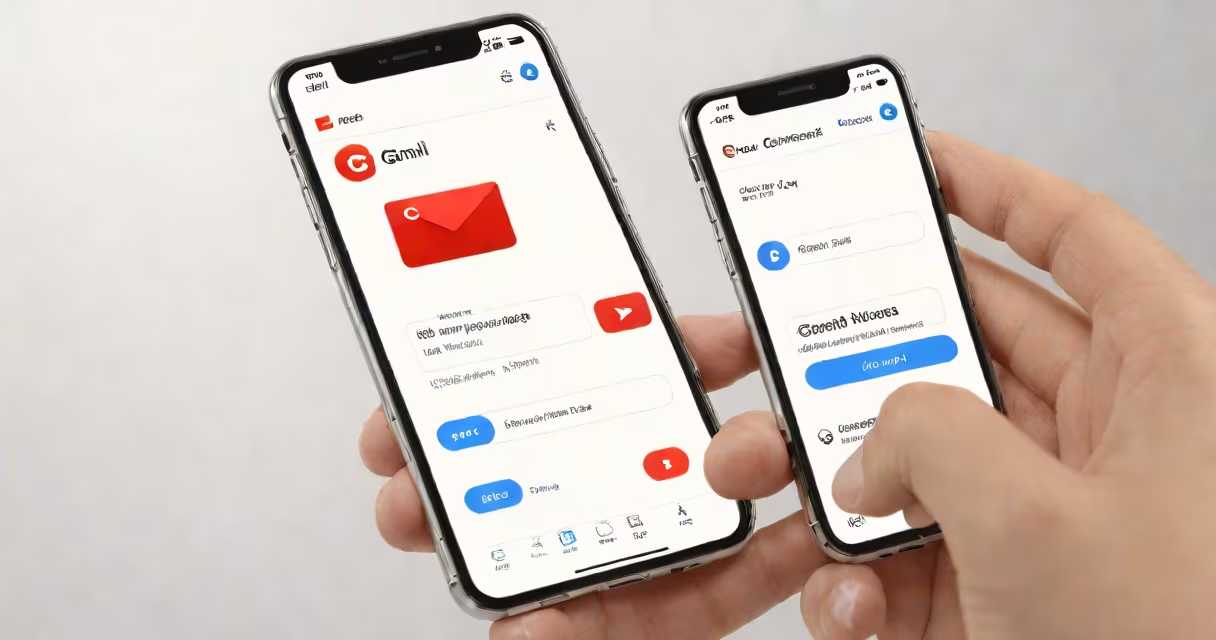
To add a new contact in Gmail, open the Contacts tab in your Gmail account, click "Create contact," and enter the person's name, email, phone number, and optional details like address or birthday. This process works on desktop and mobile devices.
Gmail integrates with Google Contacts, a centralized system that stores all your personal and professional contacts. When you add a contact through Gmail, it syncs across all your Google-enabled devices-Android phones, iPhones, tablets, and computers.
You can access the Contacts tab from the Gmail sidebar. Click the icon shaped like two people (or the "Contacts" label under "More") to open the contact list. From there, select "Create contact" to begin adding a new entry.
On a computer, open Gmail in Chrome or another browser. Click the gear icon in the upper-right corner, then select "See all settings." Go to the "General" tab and ensure "Contacts" is enabled under "Sidebar."
Click the "Contacts" link in the left-hand menu. A new window opens showing your contact list. Click "Create contact" in the top-left corner. Enter the full name, email address, and any other relevant info such as phone number, company, or notes.
After filling out the fields, click "Save." The contact appears in your list and is automatically synced to your Google Account. You can now send emails, schedule meetings, or share files with them using their name or email.
Open the Gmail app on Android or iPhone. Tap the profile icon in the top-left corner, then tap "Contacts" from the menu. Tap the "+" button in the lower-right corner to start creating a new contact.
Enter the contact's name, email, and phone number. Tap "Add" to save. The contact appears in your list immediately and syncs across all devices linked to your Google account.
If you're using an iPhone, the contact may appear in both Gmail and the native Contacts app, depending on your sync settings. To control this, go to Settings > Mail > Accounts > Google, and toggle "Contacts" on or off.
Gmail supports multiple fields for each contact. You can store:
For example, adding a colleague named Sarah Chen with her work email [email protected], office number (555) 123-4567, and role as "Marketing Director" gives you quick access during team meetings or calendar invites.
| Field | Example Value | Use Case |
|---|---|---|
| Name | Sarah Chen | Display in email drafts and search results |
| [email protected] | Send messages, set up group chats | |
| Phone | (555) 123-4567 | Initiate calls via Google Voice or third-party apps |
| Address | 123 Main St, Set 500, San Francisco, CA 94105 | Share location for events or deliveries |
One frequent error is assuming that adding a contact in Gmail automatically adds them to your phone's native address book. That doesn't happen unless syncing is explicitly enabled.
Another issue: users create duplicate entries. For example, entering "Sarah Chen" twice under slightly different spellings (e.g., "S. Chen" vs. "Sarah Chen") leads to confusion. Always check the existing list before creating a new contact.
A non-obvious fix: if a contact won't save, verify that your Google Account has permission to access Contacts. On Android, go to Settings > Apps > Gmail > Permissions, and confirm "Contacts" is allowed. On iOS, check Settings > Gmail > Contacts.
Suppose you're a freelance designer and need to add a new client named James Rivera. His business email is [email protected], and he's based in Chicago.
On desktop: Open Gmail, click "Contacts," hit "Create contact," type "James Rivera," add the email, then input his phone number (312) 555-0198 and address (450 West 18th Street, Chicago, IL 60616). Add a note: "Client for logo redesign project." Save.
The contact now shows up in your Gmail contacts list. When you reply to his email, typing "James" brings up his full name and photo. You can also drag his name into a new message draft.
Some users think they must use Google Contacts separately from Gmail. They don't. Gmail uses Google Contacts as its backend database. All changes made in Gmail affect the shared contact list.
Others assume that contacts added in Gmail are private. That's false. If you have multiple devices signed into the same Google Account, the contact appears everywhere. Sharing a contact with someone else requires explicit export or sharing features-not automatic visibility.
Also, adding a contact doesn't trigger an invitation to connect. Unlike social platforms, Gmail doesn't notify the recipient when you add them. They'll only see your messages if you send one.
I once added a vendor's contact while traveling, using only my phone. I typed in the name and email, saved it, and later realized I'd missed the phone number. I opened the contact again, edited it, and added the number. The update synced instantly to my laptop and tablet. No extra steps were needed.
Use labels to organize contacts. Right-click a contact in Gmail and choose "Add label." Name it "Clients," "Family," or "Events." You can filter your contact list by label.
Import bulk contacts using a CSV file. Go to Google Contacts, click "Import," upload the file, and map columns like "Name," "Email," and "Phone." This method saves time when onboarding a team.
Set up a contact group for recurring communication. Create a group called "Project Alpha Team" and add five members. Then, when sending an email, type "Project Alpha Team" in the "To" field-it sends to all five at once.
For users managing multiple accounts, consider using Google Workspace. It allows administrators to enforce contact policies and restrict external sharing.
Once you've added a contact, you can integrate it with other services. For example, if you use a calendar app like Google Calendar, you can invite the contact to events by typing their name in the "Add guests" field.
You can also link your Gmail contact to a Google Meet link. When scheduling a meeting, the contact's name appears in the invite, and they receive a direct link to join.
Understanding how to add a new contact in Gmail ensures you maintain accurate, searchable, and synchronized contact records. This improves email efficiency, reduces errors, and streamlines collaboration across teams and projects.