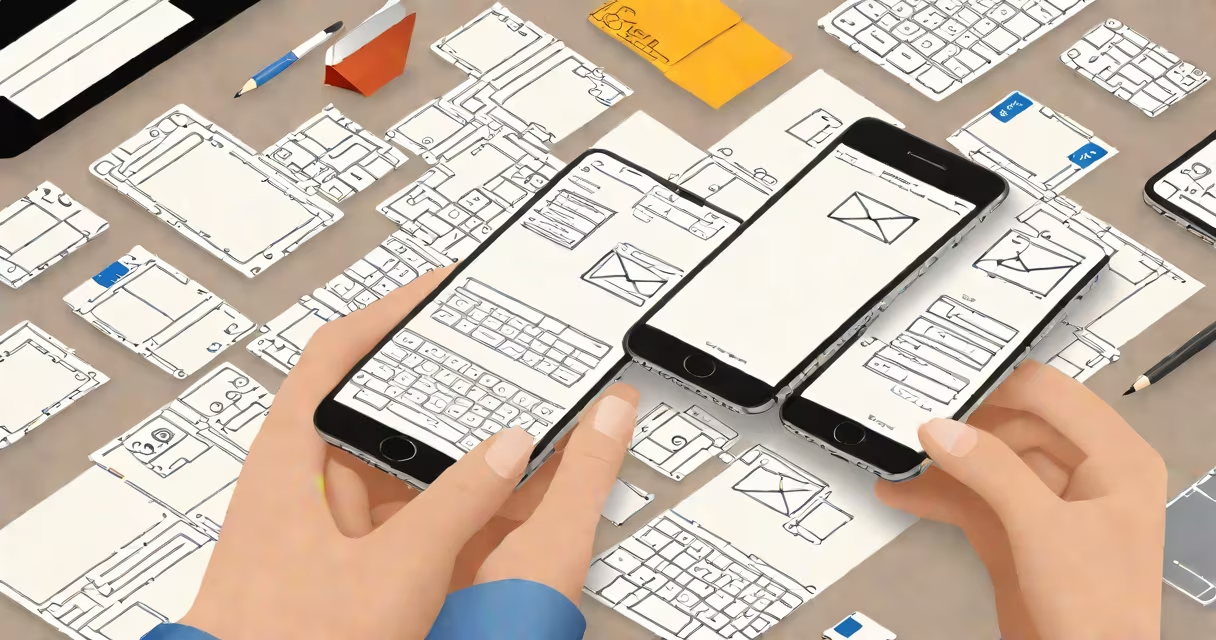
To put an email on iPhone, open Settings, tap Mail, then select Accounts, and choose Add Account. Enter your email address, password, and server details if required. The device configures the account automatically for most providers like Gmail, Outlook, and Yahoo.
Adding an email account to your iPhone connects your inbox to the device's Mail app. This process syncs incoming messages, sends new ones, and updates calendars and contacts if enabled. Apple's iOS handles most configuration automatically using standard protocols like IMAP and SMTP.
Most users don't need to enter server settings manually. Apple detects the correct settings for major email services. For custom domains or enterprise accounts, you may need to input server addresses and port numbers. Always verify credentials with your provider's support page.
When you add an email account, the iPhone uses the account's domain to identify the mail service. It queries public records such as DNS TXT and SRV entries to determine the correct protocol and server locations. This is called automatic configuration.
If the system fails to detect settings, you'll see a prompt to enter them manually. Common options include IMAP for receiving emails and SMTP for sending. Port numbers vary: IMAP typically uses port 993 with SSL, SMTP uses port 587 with TLS.
After entering credentials, the iPhone tests connectivity. A successful test confirms the account is valid and accessible. Once verified, the device downloads recent messages and sets up folders like Inbox, Sent, and Drafts.
Apple supports several account types. Most common are iCloud, Gmail, Outlook.com, Yahoo Mail, and custom domains. Each requires different login methods and security settings.
| Account Type | Authentication Method | Required Info | Notes |
|---|---|---|---|
| Gmail | OAuth 2.0 | Email, password, 2FA if enabled | Requires app-specific password if 2FA is on |
| Outlook.com | OAuth 2.0 | Email, password | Supports modern authentication |
| Yahoo Mail | OAuth 2.0 | Email, password | App passwords needed for 2FA |
| Custom Domain | IMAP/SMTP | Email, password, server addresses | Manual setup required |
For custom domains, you must know the incoming (IMAP) and outgoing (SMTP) server details. These are usually provided by your hosting provider or IT department. Example: Incoming server = imap.yourdomain.com, port 993; outgoing server = smtp.yourdomain.com, port 587.
Some older email systems still use POP3 instead of IMAP. Apple supports POP3 but recommends IMAP for better syncing across devices. POP3 downloads messages to one device only, which limits access from other phones or computers.
You'd add an email to your iPhone to stay connected to work, school, or personal communications. Many people use multiple accounts-one for business, another for personal use. The Mail app allows switching between them with a single tap.
Setting up email on iPhone enables push notifications. New messages arrive instantly without needing to refresh. This feature relies on Apple Push Notification Service (APNs), which routes alerts securely through Apple's servers.
A real-world example: Sarah manages her freelance work via a Gmail account and her family life through a Yahoo account. She adds both to her iPhone. When a client sends a message, she gets a notification within seconds. She replies while commuting, and the message sends immediately.
Many users think they must use iCloud Mail to receive emails. That's incorrect. iCloud Mail is only one option. You can use any provider-Gmail, ProtonMail, FastMail, or even corporate Exchange servers.
Another misconception: "I can't add my email because I don't have a password." This is false. If you're using a passwordless login method like biometrics or magic links, you still need to authenticate through the Apple ID system. Some services require an app-specific password, especially if two-factor authentication is enabled.
One non-obvious issue: Apple disables certain features for accounts flagged as high-risk. If your email provider reports suspicious activity, Apple may block access until you confirm identity. This happens during phishing attempts or brute-force attacks. Check your provider's security logs to resolve it.
I once helped a user who couldn't add their university email. The issue was a missing certificate. The school used an internal CA to secure connections. After installing the root certificate from the IT portal, the account synced correctly. This detail is rarely mentioned in guides.
After adding your email, go to Settings > Mail > Accounts > [Your Account] to adjust sync frequency, message retention, and folder visibility. You can choose to sync only recent messages or keep everything for up to 365 days.
Set up notifications for specific accounts. Go to Settings > Notifications > Mail and toggle alerts on. Choose sound, badge, and banner styles per account.