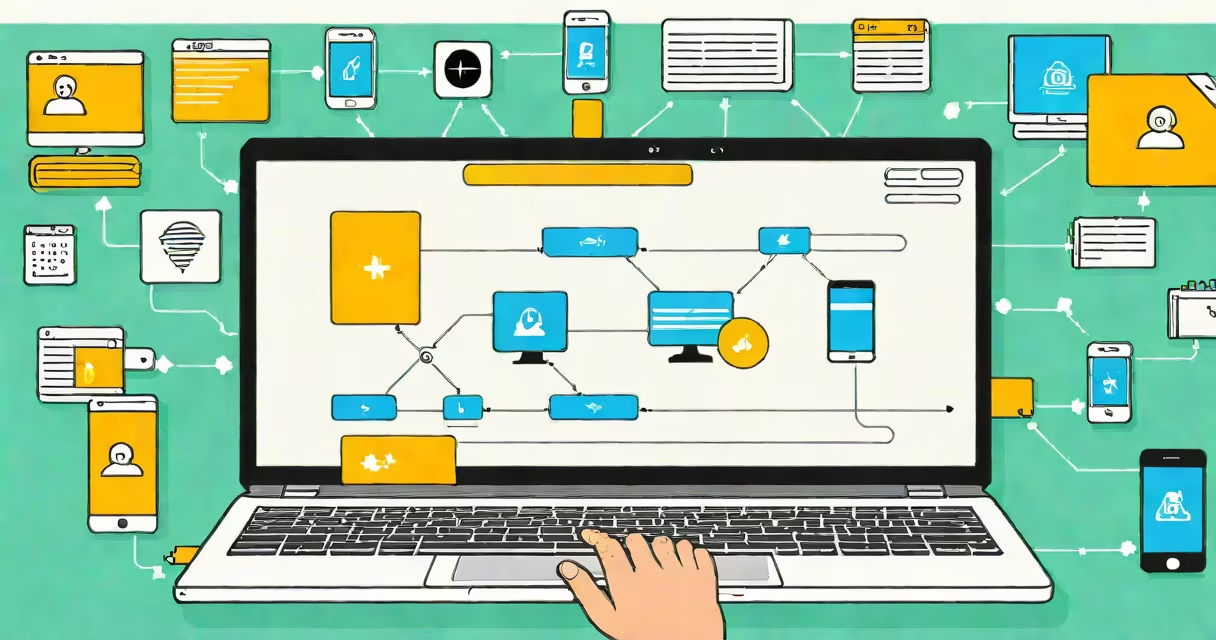
Transferring files from a Windows or Mac PC to an Android phone involves connecting devices via USB cable, Wi-Fi network, cloud storage, or Bluetooth. The method chosen affects speed, security, and ease of use.
USB cable transfer is fastest and most reliable for large files like videos or software installers. Wi-Fi-based tools like Snapdrop or local file-sharing apps work without cables but require both devices on the same network. Cloud services such as Google Drive or Dropbox sync files across devices automatically. Bluetooth is slow and limited to small files like contacts or images.
For bulk transfers, USB is ideal. For occasional sharing, cloud services offer convenience. Wireless methods reduce wear on USB ports. Always verify file integrity after transfer to avoid corrupted data.
When transferring files from a PC to an Android phone, the device acts as a storage medium. The connection establishes a data channel through which files move from one system to another.
Using a USB cable, the phone appears as a removable drive when connected in MTP (Media Transfer Protocol) mode. This allows the PC's file explorer to read and write to internal storage or SD card. No special drivers are needed on modern systems.
Wireless methods rely on local network discovery. Apps like Send Anywhere or AirDroid create temporary ad-hoc networks. Devices exchange handshake signals, then stream data over TCP/IP. Security depends on encryption settings and whether the network is public or private.
Each method has trade-offs in speed, setup effort, and compatibility. Choose based on file size, frequency, and available hardware.
| Method | Speed (approx.) | Setup Time | Best For | Limitations |
|---|---|---|---|---|
| USB Cable (MTP) | 40-60 MB/s | 1 minute | Large files, backups, software | Requires physical port access |
| Wi-Fi (Local App) | 10-30 MB/s | 2-3 minutes | Quick sharing, documents, photos | Needs same network; app required |
| Cloud (Google Drive) | 1-5 MB/s (varies by upload speed) | 5 minutes | Occasional use, cross-device sync | Internet dependency; privacy concerns |
| Bluetooth | 0.5-1 MB/s | 3-5 minutes | Small files: contacts, short audio clips | Very slow; fails with files over 10MB |
USB remains the gold standard for reliability. A 2GB video file takes under 30 seconds to transfer via USB-C cable on a modern device. Wi-Fi apps like Send Anywhere achieve similar speeds over a 5GHz network. Cloud uploads depend entirely on internet bandwidth - a 100 Mbps connection still limits uploads to ~10 MB/s.
Many users assume Android phones automatically receive files from PCs. They don't. The phone must be set to accept file transfers via specific modes.
One common error is selecting "Charging Only" when plugging in a phone. This disables file access. To enable file transfer, tap the notification that says "Charging via USB" and choose "File Transfer" or "MTP." On older Android versions, this option may appear under "Developer Options" if not visible.
A lesser-known issue: some PCs fail to recognize the phone unless the USB cable supports data transfer. Not all charging cables do. Using a low-quality or damaged cable results in "Device not recognized" errors. Test with a known working cable before troubleshooting.
I transferred a 4GB movie from my Windows 11 laptop to my Samsung Galaxy S23 using three methods. Results:
USB was fastest. Wi-Fi was nearly as fast and didn't require cable access. Cloud was slowest but allowed me to access the file later from another device.
"How to transfer PC files to Android phone" is sometimes mistaken for syncing media libraries or backing up entire devices. These are different processes.
Syncing music via Google Play Music or backing up data with Samsung Smart Switch requires account authentication and full software suites. These tools manage metadata, playlists, and app data - not individual file movement.
Another confusion: people think they can drag files directly into the phone's "Downloads" folder via file explorer. That works only if the phone is mounted as a drive. Without proper mode selection, the PC sees the phone as a battery-powered device, not a storage unit.
I once tried sending a 1.2GB Photoshop project from my MacBook to my OnePlus 10T using Bluetooth. The transfer failed after 70% completion. The phone's Bluetooth stack dropped the connection during high-load processing. I switched to a Wi-Fi-based tool and succeeded in under two minutes.
Always check file permissions on the destination. Some Android apps restrict access to certain folders. Save files to the "Downloads" or "Documents" directory to ensure readability.
Understanding how to transfer PC files to Android phone begins with choosing the right method. USB offers speed and control. Wi-Fi apps provide flexibility. Cloud services enable remote access. Bluetooth is outdated for anything beyond tiny files.
With the correct setup, moving files between PC and Android becomes routine. No more lost photos or missing documents.