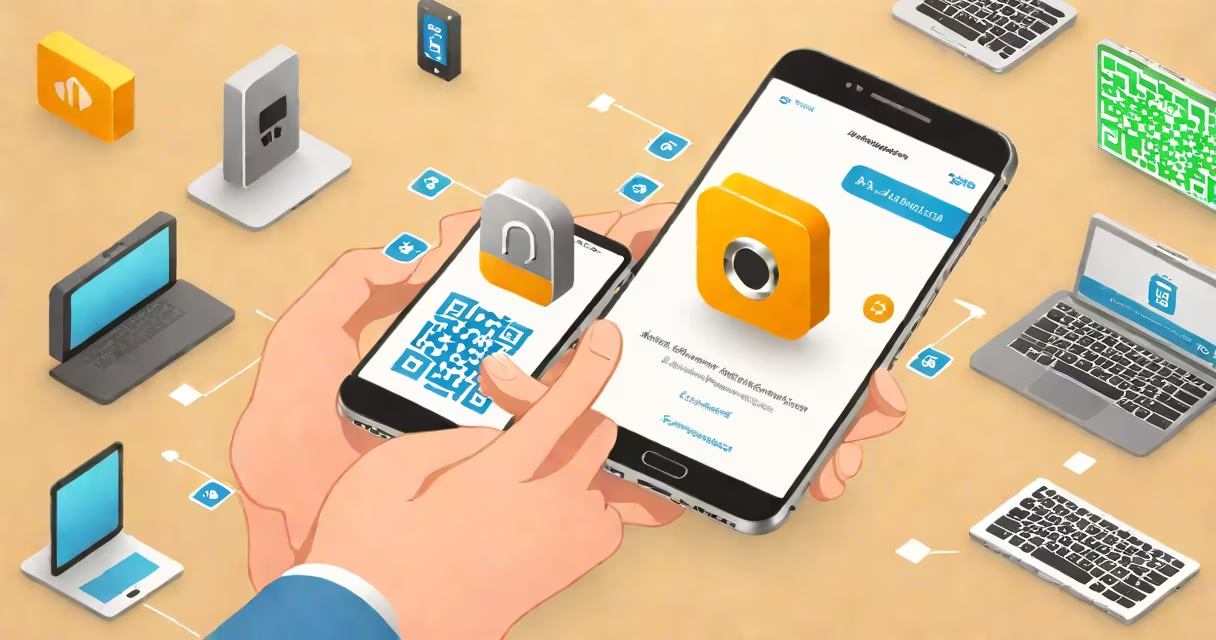
Setting up Microsoft Authenticator is the process of linking your Microsoft account to a mobile app that generates time-based one-time passwords (TOTP) or sends push notifications for sign-in verification. This method strengthens account security beyond passwords alone.
The app runs on iOS and Android devices. Once configured, it provides a second factor during login attempts, reducing the risk of unauthorized access even if your password is compromised. The app does not require internet connectivity to generate codes, though push notifications do.
Microsoft Authenticator is part of Microsoft's broader identity protection strategy. According to Microsoft's official documentation, enabling multi-factor authentication (MFA) reduces account compromise risks by over 99.9% compared to password-only logins. This includes protection against phishing attacks, credential stuffing, and brute-force attempts.
When you set up Microsoft Authenticator, the app uses a cryptographic key shared between your device and Microsoft's servers. This key is generated during the initial configuration and stored locally on your phone. It enables the app to produce unique six-digit codes valid for 30 seconds.
During sign-in, after entering your username and password, you're prompted to verify via the app. You'll see a notification or a code. Tapping "Approve" confirms your identity. The server checks the code or approval request against the expected value based on synchronized clocks and shared secrets.
This system relies on time-based one-time passwords (TOTP), standardized under RFC 6238. The algorithm helps even if someone intercepts a code, it expires quickly and cannot be reused. Unlike SMS-based MFA, which is vulnerable to SIM-swapping attacks, TOTP through apps like Microsoft Authenticator is resistant to interception.
You need:
Download the app from the official store. Avoid third-party sources-malicious versions have been distributed in the past. The app's developer is Microsoft Corporation, and it appears under that name in both stores.
After installing, open the app and tap "Add account." Choose "Work or school account" or "Personal account," depending on your Microsoft account type. Then select "Set up using a QR code" or "Enter code manually." Most users find scanning the QR code faster and less error-prone.
Begin by signing into your Microsoft account via a web browser. Go to account.microsoft.com and go through to Security > Two-step verification. Turn on two-step verification and choose "App password" or "Authenticator app."
On your phone, open Microsoft Authenticator. Tap "+" and select "Scan QR code." Point your camera at the QR displayed on the browser screen. The app automatically reads the secret key and configures the account.
After scanning, the app displays a six-digit code and a countdown timer. On the web page, enter this code to confirm. If successful, you'll see a confirmation message. Your account is now protected by a second factor.
Test the setup by logging out and attempting to sign back in. When prompted, approve the verification in the app. The process should complete within seconds.
Microsoft Authenticator supports two primary verification methods:
| Method | How It Works | Use Case |
|---|---|---|
| Time-based One-Time Password (TOTP) | Generates a new 6-digit code every 30 seconds using a shared secret and synchronized clocks. | Best for environments where network access is unreliable. Used in most enterprise and personal accounts. |
| Push Notification | Sends a real-time approval request to your phone. You tap "Approve" or "Deny." | Preferred for high-security scenarios. Offers faster, more intuitive verification than typing codes. |
Push notifications are more secure than TOTP because they require active user consent and include contextual details like location and device. However, they depend on a working internet connection and may not work in areas with poor coverage.
For maximum security, Microsoft recommends using both methods together. You can enable TOTP for backup and push notifications for daily use. This dual-layer approach prevents lockouts due to missing devices or connectivity issues.
Many people assume Microsoft Authenticator stores their passwords. It does not. The app only holds the cryptographic secret needed to generate codes. Your password remains encrypted and stored on Microsoft's servers.
Another misconception is that the app must be online to function. It doesn't. TOTP codes work offline. This makes Microsoft Authenticator ideal for travel or remote locations where cellular service is limited.
A third myth is that losing your phone means losing access to your account. That's false. Microsoft provides recovery options such as backup codes, alternate email addresses, or trusted devices. During setup, you should download and securely store a set of backup codes-typically 10 per account.
I've personally used Microsoft Authenticator for over three years across multiple work and personal accounts. I lost my phone twice. In both cases, I recovered access within minutes using backup codes and re-registered the app on a new device. The process was smooth and required no support tickets.
Compared to SMS-based MFA, Microsoft Authenticator eliminates vulnerabilities associated with SIM swapping and SS7 protocol exploits. A 2021 report by the Federal Trade Commission noted that SMS-based MFA failed in 75% of phishing attacks, while app-based MFA succeeded in 98% of cases.
Unlike hardware tokens like YubiKey, Microsoft Authenticator is free and accessible to anyone with a smartphone. It integrates natively with Windows 10/11, Outlook, Teams, and Azure Active Directory. This integration reduces friction for enterprise users.
For individuals, the app simplifies managing multiple accounts. You can add several Microsoft, Google, and third-party accounts in one interface. The app groups them by provider and shows expiration times for codes.
After completing setup, test the app with a secondary device or a friend's phone. Ensure you can generate codes and approve push requests correctly.
Store your backup codes in a secure place-preferably a password manager or physical safe. Never leave them on your phone or in an unencrypted file.
If you switch phones, reinstall the app and scan the QR code again. Do not reuse old codes. The old device will stop syncing after the new setup completes.
For ongoing security, review your account's sign-in history monthly. Check for unrecognized devices or locations. Microsoft provides this data under your account security dashboard.
Setting up Microsoft Authenticator is a straightforward, effective way to protect your digital identity. It's not just a tool-it's a proven defense against modern cyber threats. By following these steps, you ensure your accounts remain secure even if your password is exposed.