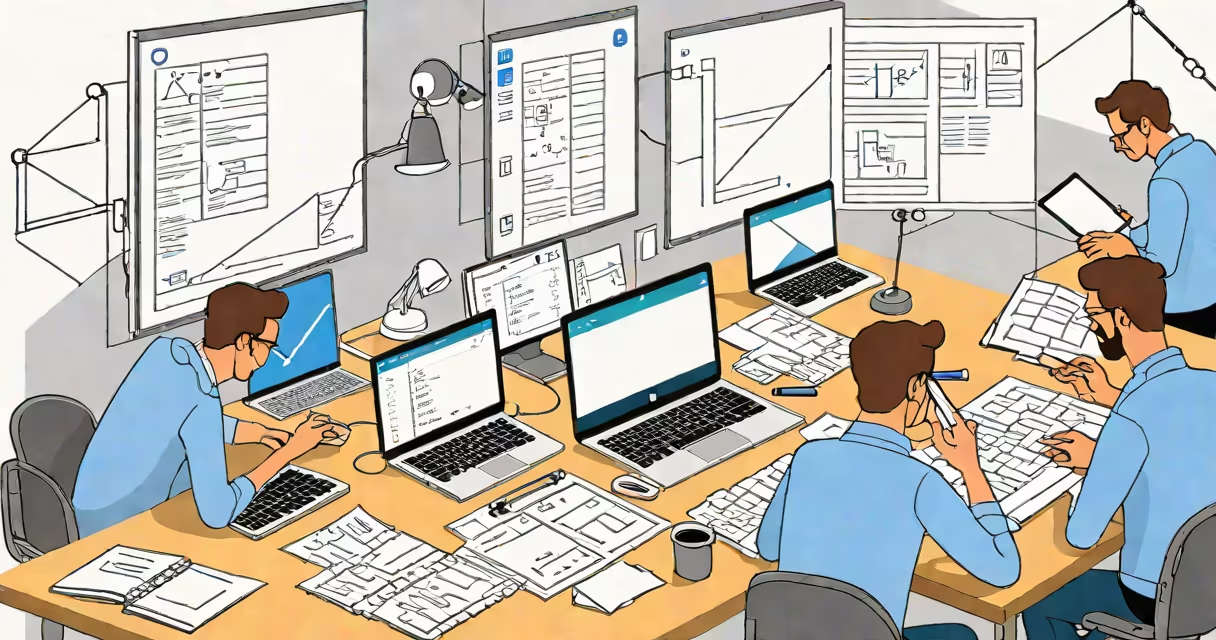
Using Google Docs means creating, editing, and sharing text documents online through Google's free web-based office set. It enables real-time collaboration, automatic saving, and access from any internet-connected device.
Google Docs runs entirely in your browser. You don't install software. When you open a document, changes appear instantly across all devices. This eliminates version confusion and file transfer delays common with email attachments.
For example, a team of four writers in different cities can draft a report simultaneously. One edits the introduction while another adds citations. A third reviewer highlights a section for clarification. All updates happen live, with no need to send files back and forth.
When you use Google Docs, your work saves automatically every few seconds. There's no "Save" button. Changes are stored in Google's cloud infrastructure, accessible via any device with a web browser and internet connection.
Each user's cursor appears in a unique color. Edits show up instantly. Comments and suggestions mode allow feedback without altering the original text. The revision history tracks every change, including who made it and when.
Real-time collaboration is enabled through permissions. You can set a document to "view only," "comment only," or "edit." These settings apply globally and can be adjusted at any time.
Google Docs supports standard word processing tasks: formatting text, inserting images, adding tables, using headers and footers, and generating tables of contents. It also includes advanced tools like citation managers, equation editors, and integration with Google Sheets and Slides.
There are three primary modes for using Google Docs:
| Mode | Use Case | Example |
|---|---|---|
| Personal drafting | Writing notes, essays, or personal journals | A student writes a research paper and shares it with their professor for feedback. |
| Team collaboration | Project planning, meeting minutes, shared reports | A marketing team drafts a campaign brief while reviewing metrics in linked Google Sheets. |
| Client or public sharing | Presenting proposals, publishing content, distributing forms | A freelance designer shares a design contract with a client who signs it digitally. |
Documents can be exported in multiple formats: PDF, Microsoft Word (.docx), OpenDocument (.odt), and plain text. This ensures compatibility with offline workflows.
Many assume using Google Docs requires a Gmail account. That's incorrect. You can sign in with any email address, including those from Yahoo, Outlook, or university domains. Once signed in, you gain access to all Google Workspace features.
Another misconception is that Google Docs lacks advanced formatting. It supports styles, templates, page numbers, and custom fonts. However, complex layout features like multi-column text or precise margin control require careful setup. For such tasks, exporting to PDF or using Google's desktop app may be better.
A less obvious point: Google Docs doesn't support macros or scripting natively. Unlike Microsoft Word's VBA, you cannot automate repetitive tasks within the editor itself. But you can use Google Apps Script to build custom functions that extend functionality, such as auto-populating fields based on form responses.
Suppose a small nonprofit wants to launch a community garden. They use Google Docs to create a project plan.
This entire process takes under 15 minutes and requires no file transfers or email chains.
I once used Google Docs during a remote interview for a content role. The hiring manager sent me a short writing task via link. I completed it in 12 minutes, then shared the document with my portfolio. The team reviewed it live during our call. No delays. No lost versions. The feedback was immediate. That experience showed me how efficiently Google Docs handles real-world collaboration.
Using Google Docs is standard practice in education, startups, nonprofits, and remote teams. According to a 2023 report by Gartner, over 60% of global enterprises use Google Workspace for core productivity tasks. The platform's integration with other tools like Gmail, Calendar, and Drive makes it ideal for workflow continuity.
Teachers use it to assign group projects. Students submit work directly to instructors. Feedback is added inline, and students can revise in real time. Schools often disable printing options to prevent cheating during exams.
Businesses rely on it for internal documentation. A product team might track feature requests in a shared doc, tagging issues with status indicators. This reduces reliance on email threads and siloed spreadsheets.
One frequent error is leaving documents set to "Anyone with the link can edit." This exposes sensitive information. Always check sharing settings before publishing. Use "Restricted" access unless collaboration is intentional.
Another issue is overusing comments. While useful for feedback, too many comment threads clutter the interface. Use the "Resolve" function to close discussions once addressed. Keep comments concise and specific.
Finally, users sometimes forget to lock sections of a document. If a section contains finalized content, use the "Protect range" feature to prevent accidental edits. This is especially useful in legal or financial documents.
Using Google Docs is not just about writing. It's about building shared understanding across distances, time zones, and organizational boundaries. The tool removes friction from communication, letting ideas flow freely.