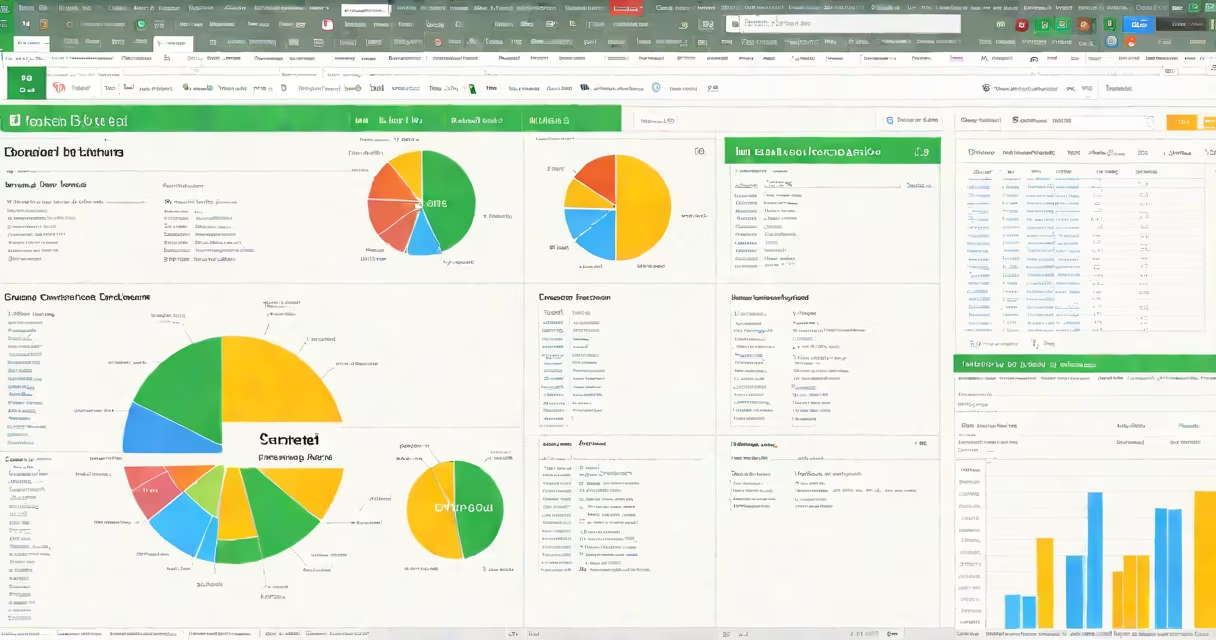
An annual budget template in Google Sheets is a structured spreadsheet that tracks projected and actual income and expenses across all 12 months of a year, enabling users to forecast cash flow, identify spending patterns, and adjust financial goals in real time. It uses formulas to auto-calculate totals, percentages, and variances, and supports live collaboration across devices.
These templates are built using Google Sheets' core features: cell formulas (like SUM, IF, and VLOOKUP), conditional formatting, dropdown menus, and built-in charting tools. They typically include dedicated sections for income sources, fixed and variable expenses, debt payments, savings targets, and net balance summaries. Users can customize categories, set alerts, and export data to PDF or CSV for reporting.
Google Sheets offers cloud access, version history, and sharing controls, making it ideal for individuals, freelancers, small teams, and families managing shared finances. Templates are often pre-formatted with color-coded rows, protected cells, and instructional notes to reduce setup time.
The template functions by organizing data into labeled columns and rows. For example, column A lists expense categories (rent, groceries, utilities), row 1 contains month headers (January-December), and each cell holds a monetary value. Formulas in adjacent columns compute subtotals, compare planned vs. actual spending, and flag overspending.
When a user enters a value in a cell, the spreadsheet recalculates totals instantly. A formula like =SUM(B2:B13) adds all January entries across 13 rows. Conditional formatting highlights cells above a threshold-say, any expense over $200 in the "Entertainment" category-using red fill and bold text.
Advanced templates use named ranges and data validation to restrict input to specific values. For instance, a dropdown list in the "Category" column ensures consistent labeling. This prevents errors like typing "transporation" instead of "transportation," which would break analysis.
Templates vary by complexity and intended use. Here's a breakdown of common types:
| Type | Best For | Key Features |
|---|---|---|
| Basic Monthly Budget | Individuals tracking household spending | Income/expense tables, monthly totals, simple charts |
| Family or Household Budget | Multiple earners, shared bills, kids' expenses | Split income by person, shared cost allocation, child-related categories |
| Freelancer or Self-Employed Budget | Irregular income, tax estimates, project-based work | Quarterly tax calculation, invoice tracking, milestone-based goals |
| Business or Startup Budget | Small operations with multiple departments | Departmental allocations, capital expenditure tracking, profit margin forecasting |
Some templates include automated reports. For example, a "Savings Rate" metric updates monthly based on income and savings contributions. If a user earns $4,000/month and saves $600, the rate displays as 15%. This helps track progress toward long-term goals like emergency funds or retirement.
A non-obvious feature is the ability to link templates across years. By copying last year's data into a new sheet, users can compare performance and spot inflation trends. The IRS notes that tracking expenses over time improves accuracy in tax deductions, especially for home office or business use.
Many assume an annual budget template automatically prevents overspending. That's incorrect. The template only shows what happened or what's expected-it doesn't enforce limits. Users must manually review and act on warnings.
Another mistake is treating the template as static. The best templates allow adjustments. For example, if a user gets a bonus in June, they can insert a new row under "Income" and update the forecast. The template recalculates remaining budget for the rest of the year.
Consider Sarah, a freelance graphic designer. She uses an annual budget template in Google Sheets to plan her 2024 finances. Her income varies: $3,000 in January, $5,000 in March, and $2,000 in May. She sets a goal to save $1,500 per month.
She inputs her fixed costs: rent ($1,200), internet ($60), insurance ($180). Variable costs include groceries ($400), dining out ($250), and software subscriptions ($120). The template calculates her net cash flow each month.
In April, she spends $500 on dining out-$250 over budget. The cell turns red due to conditional formatting. She reviews the entry, realizes she attended two client dinners, and adjusts her May estimate to $150. The template updates her projected savings for the year.
This process helped her avoid a deficit and saved $1,800 by year-end. She exported the final sheet to PDF and shared it with her accountant during tax filing.
Start by naming your sheet "Annual Budget 2024." Set up columns: Category, Jan, Feb,..., Dec, Total, Variance. Use data validation to create a dropdown list for Categories (e.g., "Housing," "Transportation," "Healthcare").
Add formulas: =SUM(B2:M2) for the Total row, =N2-O2 for Variance (actual minus planned). Apply conditional formatting to show negative variances in red.
Use the "Protect Range" feature to lock totals and formulas while allowing edits to input cells. Share the file with family members or a financial advisor via email or link.
For recurring expenses, copy the row and use the "Fill Series" function to repeat values across months. This avoids manual entry and reduces errors.
Google Sheets enables real-time access from any device. If Sarah travels, she can update her budget from her phone. Changes sync instantly across all devices.
Unlike paper spreadsheets, Google Sheets retains edit history. If someone accidentally deletes a row, you can restore it from version history. Google Workspace reports that 87% of teams using shared spreadsheets saw faster decision-making due to immediate visibility.
Compared to Excel, Google Sheets offers free cloud storage and easier sharing. No installation required. Accessible through any browser or app.
An annual budget template in Google Sheets isn't a magic fix. It's a tool that works only when updated regularly and reviewed monthly. But with accurate data and clear goals, it becomes a useful way to take control of personal or business finances.