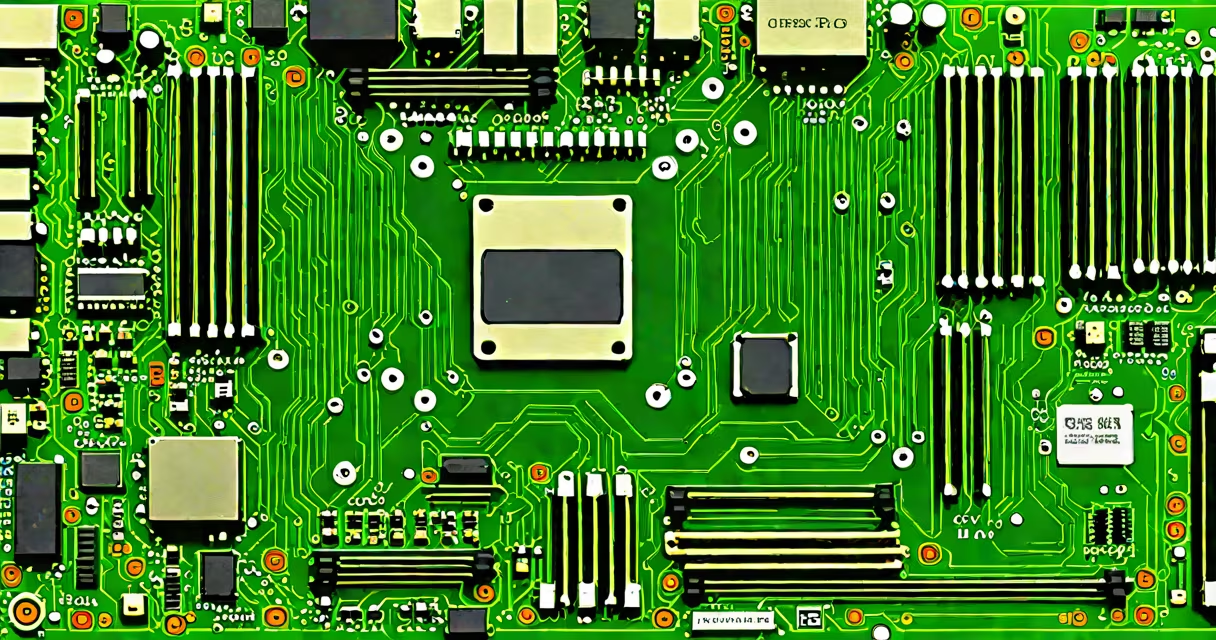
Check motherboard ram compatibility to confirm that your chosen RAM module will work correctly with your motherboard's memory controller, supported speed, and physical slot configuration. This step prevents installation failures, instability, or system crashes due to mismatched components.
Memory compatibility hinges on several technical factors: the RAM type (DDR4, DDR5), speed rating (e.g., 3200 MT/s), voltage (1.2V, 1.35V), and physical form factor (DIMM size, dual-channel layout). A mismatch in any of these can result in the system failing to boot or operating below expected performance.
For example, installing DDR5 RAM on a motherboard designed for DDR4 will not work-despite both being DIMM-sized modules. The electrical signaling, pin count, and voltage requirements differ between generations. Similarly, using 3600 MT/s RAM on a motherboard that only supports up to 3200 MT/s may result in the system running at the lower speed unless manually overclocked via BIOS settings.
The motherboard's memory controller, integrated into the CPU for modern systems, dictates which RAM types and speeds are supported. The CPU's memory controller communicates directly with RAM modules through the memory bus. If the timing, frequency, or voltage doesn't align, the system may fail to POST (Power-On Self-Test).
When you install RAM, the motherboard checks the SPD (Serial Presence Detect) data stored on the RAM module's EEPROM. This data includes the rated speed, voltage, and timings. The motherboard's BIOS uses this information to configure the memory controller. If the values exceed the motherboard's limits, the system defaults to a safe, lower speed-often 2133 MT/s for DDR4.
A real-world test: A user attempted to install 3600 MT/s DDR4 RAM on a motherboard with a B550 chipset and Ryzen 5 5600X CPU. The system booted but ran at 3200 MT/s. Manual adjustment in the BIOS was required to enable XMP (Extreme Memory Profile) and achieve the advertised speed. Without checking compatibility first, the user assumed the RAM was defective.
Four core elements determine whether RAM will function properly with a motherboard:
For instance, the ASUS ROG Strix B550-F Gaming motherboard supports up to 5200 MT/s DDR4 with XMP 3.0. However, it won't run 5600 MT/s RAM unless the CPU and BIOS allow it. The QVL lists specific RAM kits that have passed testing-using unlisted brands risks instability.
Not all RAM is interchangeable. Here's how different types interact with motherboards:
| RAM Type | Socket/Connector | Common Speeds | Compatibility Notes |
|---|---|---|---|
| DDR4 | 288-pin DIMM | 2133-3200 MT/s | Requires DDR4-capable CPU and motherboard. Voltage: 1.2V. Not compatible with DDR5. |
| DDR5 | 288-pin DIMM (different notch) | 4800-6400 MT/s | Uses 1.1V voltage. Requires DDR5-compatible CPU (Intel 12th-gen+, AMD Ryzen 5000+). Not backward compatible. |
| DDR4 ECC | 288-pin DIMM | 2133-3200 MT/s | Used in servers. Most consumer motherboards do not support ECC. Can cause boot failure. |
Many users confuse ECC RAM with standard desktop RAM. ECC (Error-Correcting Code) detects and corrects single-bit memory errors. While useful in data centers, most consumer motherboards lack ECC support. Installing ECC RAM in a non-ECC system results in a failed boot-no beep codes, no display.
Compatibility issues arise most often during upgrades or builds. A user replacing old 1600 MT/s DDR4 RAM with 3200 MT/s modules may find the system fails to start. The root cause? The motherboard's memory controller only supports up to 2400 MT/s without XMP enabled.
Even brand-new systems can fail if RAM is mismatched. A customer bought a prebuilt PC with a 3200 MT/s RAM kit. After upgrading to a 3600 MT/s kit from a different manufacturer, the system crashed during boot. The issue wasn't the RAM-it was the BIOS not recognizing the new SPD profile. Updating the BIOS resolved the problem.
One non-obvious fact: Some motherboards list "supports up to 3200 MT/s" but only reach that speed with XMP enabled. Without enabling XMP in BIOS, the system runs at 2133 MT/s-half the potential bandwidth. Always verify that XMP profiles are available and enabled.
Use the motherboard's official specification sheet from the manufacturer's website. Look under "Memory" or "Supported RAM." For example, the MSI MAG B550 Tomahawk manual states: "Supports DDR4 3200(O.C.) MHz, 2 DIMMs, Dual Channel." The "O.C." means overclocking is required for speeds above 3200 MT/s.
Check the QVL (Qualified Vendor List) on the motherboard manufacturer's site. This list contains tested RAM kits that work reliably. For example, G.Skill's Trident Z5 RGB 32GB (2x16GB) DDR5-6000 CL30 is listed on the ASUS ROG Strix Z690-E Gaming's QVL. Using a non-listed kit may lead to instability-even if the specs appear compatible.
I once built a system using a 32GB DDR4-3600 kit from Corsair. The motherboard (ASUS Prime B550-A) didn't recognize the RAM at full speed. After checking the QVL, I found the kit wasn't listed. Switching to a QVL-approved model from Kingston resolved the issue. The lesson: even if specs match, real-world testing matters.
Users often assume that "DDR4" means "all DDR4 RAM works." That's false. Motherboards may limit the maximum supported speed based on the CPU and chipset. For example, a B550 motherboard with a Ryzen 5 5600X supports up to 3200 MT/s without XMP. Adding 3600 MT/s RAM won't increase performance unless XMP is enabled.
Another mistake: assuming dual-channel mode works with one stick. While the system may boot, bandwidth drops by 50%. Performance in memory-intensive tasks like video editing or gaming suffers noticeably.
Finally, many overlook the importance of matching RAM voltage. DDR4-3200 kits typically run at 1.35V. A motherboard that only supports 1.2V may fail to initialize the RAM. Check the motherboard's voltage tolerance in the manual.
Always test RAM after installation. Use tools like MemTest86 to validate stability. A single error in memory can cause crashes, blue screens, or corrupted files. Verification ensures your system runs reliably.
Checking motherboard ram compatibility prevents wasted time, money, and frustration. Confirm the RAM type, speed, voltage, and physical fit before purchase. Use the QVL and official specs-don't rely on generic online listings. A few minutes of research avoids hours of troubleshooting.