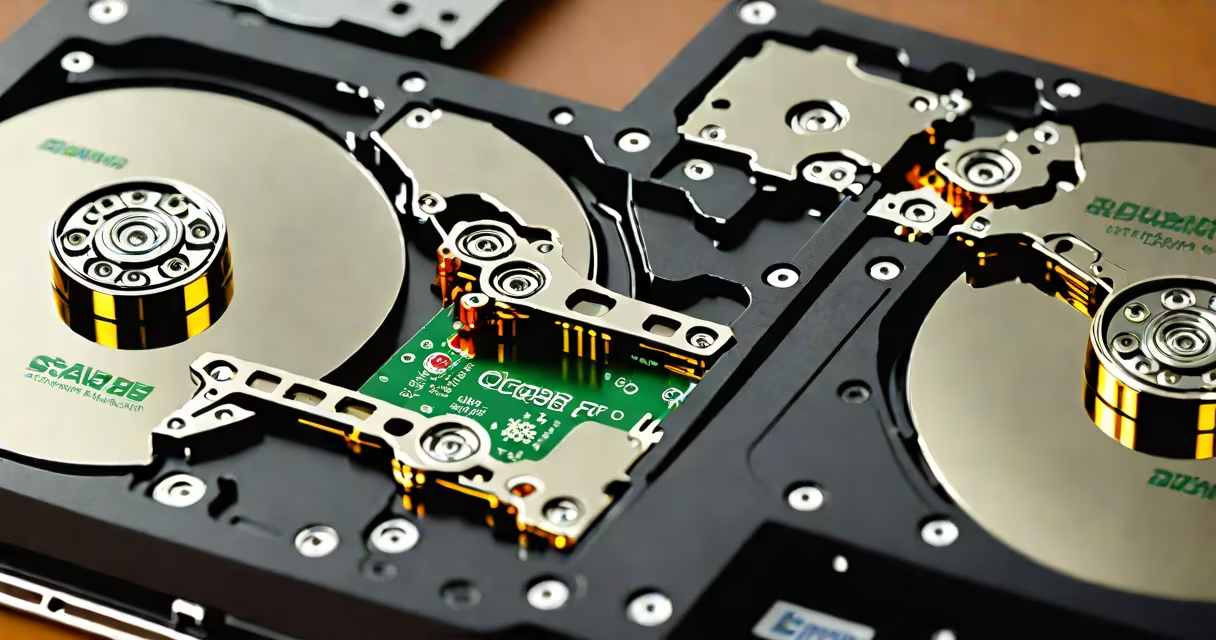
Clone hdd to hdd free means copying every sector of one hard drive to another using free software, preserving all data, partitions, and bootability. This process creates an exact duplicate usable as a backup or replacement.
Cloning copies raw data at the sector level, unlike file-by-file backup tools. It replicates everything-operating system, applications, settings, hidden files, and unallocated space. The destination drive must be equal or larger in capacity than the source.
Free tools like Macrium Reflect Free, EaseUS Todo Backup Free, and AOMEI Backupper Standard enable this without licensing fees. They run on Windows and support both SATA and NVMe drives. Cloning takes minutes to hours depending on drive size and speed.
The process begins by connecting the source and destination drives to the same computer. Most tools detect both drives automatically. You select the source drive and choose the target drive in the interface.
Behind the scenes, the software reads each sector from the source drive and writes it byte-for-byte to the destination. It skips bad sectors by marking them as unusable rather than failing. This ensures data integrity even if the source drive has minor physical damage.
After completion, the cloned drive boots identically to the original. No reinstallation or configuration is needed. This makes it ideal for upgrading to SSDs, replacing failing drives, or creating bootable backups.
Not all free tools offer the same features. Some focus on simplicity; others prioritize advanced options. The table below compares leading free tools based on key criteria.
| Tool | Supported OS | Drive Size Limit | Bootable Rescue Disk | Partition Alignment |
|---|---|---|---|---|
| Macrium Reflect Free | Windows 10/11 | 2 TB | Yes (ISO) | Yes (automatic) |
| EaseUS Todo Backup Free | Windows 7-11 | 4 TB | No | Yes |
| AOMEI Backupper Standard | Windows 7-11 | Unlimited (theoretical) | Yes (USB) | Yes |
Macrium Reflect Free supports drives up to 2 TB and generates a bootable rescue ISO. This allows cloning from within a live environment if the system fails to start. EaseUS Todo Backup Free lacks a rescue disk but handles large drives better.
AOMEI Backupper Standard offers automatic partition alignment during cloning. Misaligned partitions cause performance drops on SSDs. This feature prevents that issue without user input.
None of these tools support Linux-based systems natively. For cross-platform cloning, use command-line tools like dd on Linux, though they require technical skill and carry higher risk of data loss.
Backup software saves files and folders. It doesn't replicate the entire disk structure. If your system crashes, restoring from backup requires reinstalling the OS and applications. Recovery time increases.
Cloning preserves the complete state. After cloning, you can swap drives and boot immediately. This is faster than reinstalling Windows and applying updates. It's especially useful for IT departments managing fleets of machines.
For example, I replaced a failing 500 GB HDD in a Windows 10 laptop using Macrium Reflect Free. The source drive had a corrupted system file. After cloning to a new 1 TB SSD, the system booted normally. No driver reinstallation was needed.
Using a smaller destination drive causes failure. The tool will warn if the target is too small, but users sometimes ignore the message. Always verify drive capacity before starting.
Another error is selecting the wrong drive. Choosing the same drive as source and destination results in data overwrite. Most tools show drive size and label to reduce confusion, but accidental selection still happens.
Some users try to clone while the source drive is in use. This leads to inconsistent data because files are actively being written. Always shut down the system and connect drives externally via USB-to-SATA adapter or internal connection.
Free tools often lack automated scheduling. Unlike paid versions, they don't support recurring clones. Manual execution is required each time. Plan for regular cloning sessions to maintain up-to-date backups.
It is not the same as disk imaging. Imaging creates a compressed file (like .img or .iso) stored on another drive. Cloning copies directly to hardware. Imaging allows multiple restores from one file, but requires more storage space and longer recovery times.
It is not a recovery tool. Cloning duplicates the current state. If malware exists on the source, it transfers to the clone. Always scan the source drive before cloning. Use antivirus software and check for rootkits.
It is not a migration tool. Migrating involves moving data from old hardware to new, often with different architectures. Cloning assumes identical hardware. If you're upgrading from a mechanical drive to an SSD, cloning preserves the OS-but you may need to update drivers afterward.
For instance, I cloned a 1 TB HDD to a 1 TB SSD using AOMEI Backupper. The system booted fine, but the SSD didn't appear in Device Manager until I installed the Intel Rapid Storage Technology driver. The clone worked, but post-cloning setup was necessary.
Always verify the destination drive is properly connected and recognized. Use a USB-to-SATA adapter if internal installation isn't possible. Test the connection by checking device manager or disk management.
Run a disk check on the source drive before cloning. Use chkdsk /f /r in Command Prompt to repair errors. This reduces the chance of corrupted data transfer.
After cloning, test the destination drive by booting from it. Remove the original drive temporarily to prevent dual-boot conflicts. Confirm all applications launch correctly and network connectivity works.
For ongoing protection, combine cloning with regular backups. Use free tools like FreeFileSync for file-level sync. Maintain one full clone monthly and daily incremental backups.
Clone hdd to hdd free is a useful method to preserve system integrity. It works across generations of storage and requires no technical expertise. With the right tool and preparation, it delivers a perfect replica in under an hour.