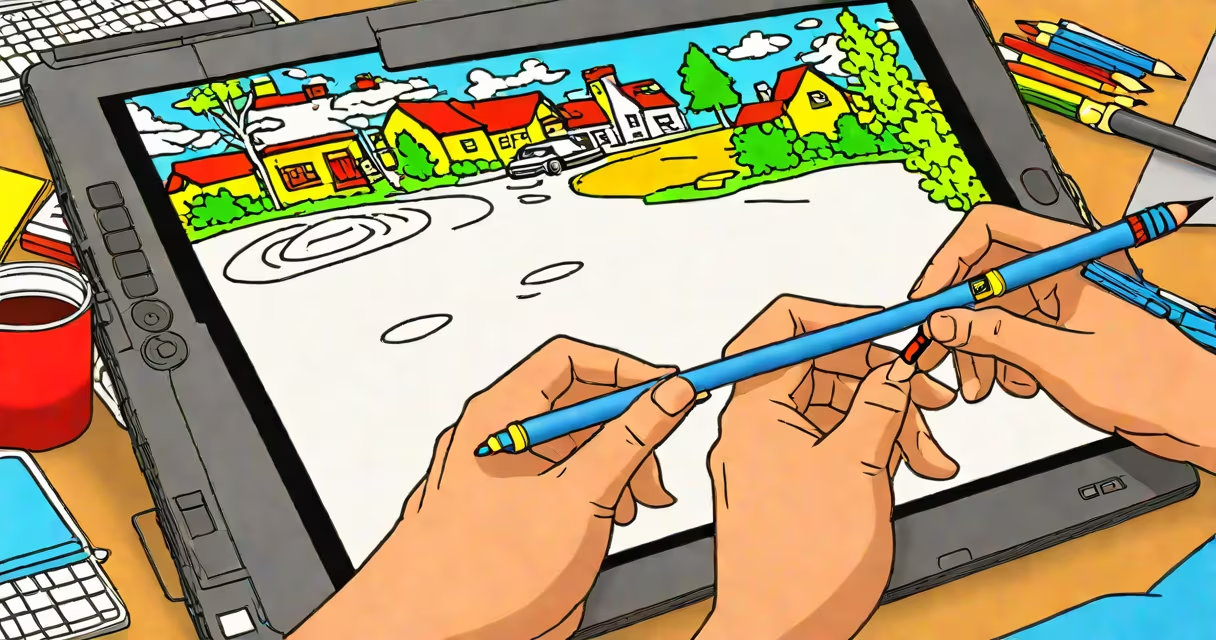
A drawing pad for Photoshop is a pressure-sensitive graphics tablet that translates hand movements into digital strokes within Adobe Photoshop. It enables precise, intuitive drawing and editing, replacing mouse-based navigation for illustrators, concept artists, and designers who require fine control over line weight, opacity, and brush texture.
These devices connect via USB or Bluetooth and pair with Photoshop's brush engine to deliver responsive feedback. Unlike a mouse, they allow artists to apply varying pressure to create thick or thin lines, mimicking traditional pen-and-paper techniques. The result is faster, more expressive work with reduced hand fatigue during long sessions.
Top models like the Wacom Intuos Pro and Huion H640P support up to 8,192 levels of pressure sensitivity and tilt recognition, allowing users to simulate charcoal, ink, or watercolor effects. This level of detail is essential for professional-grade digital illustration and concept design.
The drawing pad functions as a direct input interface between your hand and the digital canvas. When you move the stylus across the tablet surface, sensors detect position, pressure, and tilt. This data is sent to the computer in real time, where Photoshop interprets it to adjust brush behavior.
For example, pressing lightly with the stylus produces a faint line. Increasing pressure makes the stroke darker and thicker. Some tablets even track the angle of the stylus-tilting it sideways changes the brush edge, simulating a chisel or flat brush effect. This responsiveness reduces the need for manual adjustments in Photoshop's brush settings.
Modern tablets often include customizable buttons. You can assign shortcuts like "undo," "zoom," or "switch brush size" to physical keys, streamlining your creative process. A single button press replaces multiple menu clicks, saving time during complex projects.
Graphics tablets vary by size, pressure sensitivity, and additional features. Here's a comparison of common options:
| Model | Size (inches) | Pressure Levels | Tilt Support | Price Range (USD) |
|---|---|---|---|---|
| Wacom Intuos Pro | 10 x 6.5 | 8,192 | Yes | $150-$200 |
| Huion H640P | 10 x 6.5 | 8,192 | Yes | $80-$100 |
| XP-Pen Deco 03 | 8.5 x 5.5 | 8,192 | No | $50-$70 |
| Wacom One | 13 x 8.5 | 8,192 | Yes | $200-$250 |
Wacom remains the industry standard, backed by decades of artist feedback and integration with Adobe software. Their tablets are engineered for consistent performance and durability. The Wacom Intuos Pro, for instance, uses electromagnetic resonance technology, meaning the stylus doesn't need batteries and maintains zero latency.
Some newer models offer a display surface-like the Wacom Cintiq series-where the tablet is a monitor. This allows you to draw directly on the screen, eliminating the visual disconnect between hand movement and on-screen output. Artists report higher accuracy and comfort when working this way, especially for detailed character design or animation.
Non-Wacom brands like Huion and XP-Pen deliver strong value. The Huion H640P matches Wacom's pressure sensitivity and includes programmable buttons. However, driver stability and software compatibility can lag behind Wacom's polished integration with Photoshop.
Many assume that any tablet with a stylus works the same way. That's incorrect. Not all touchscreens or capacitive pens support pressure sensitivity. A basic tablet with a passive stylus may register only tap inputs, limiting control over brush dynamics.
Another misconception is that a drawing pad eliminates the need for a mouse. While it improves workflow, many tasks-like going through menus, adjusting layers, or selecting tools-still benefit from mouse precision. A hybrid setup with both devices maximizes efficiency.
Some users believe that high-end tablets automatically improve artistic skill. They don't. The tool enhances execution, but composition, color theory, and storytelling remain rooted in practice and training. A skilled artist with a low-cost tablet can produce better work than a novice with a premium model.
Consider a freelance illustrator preparing a character sheet for a comic book. Using a Wacom Intuos Pro with Photoshop, they start by sketching the figure with a soft pencil brush set to 10% opacity. As they refine the outline, they increase pressure to darken lines and define muscle structure.
They switch to a textured brush for skin shading, applying light pressure for subtle gradients and heavier pressure for deep shadows. With a custom button assigned to "undo," they correct a misaligned eye in one tap instead of going through through the Edit menu.
After completing the base layer, they duplicate the layer and use a dry brush to add fine details like eyelashes and hair strands. The tablet's tilt detection simulates a dry brush effect when angled, adding realism without extra steps.
This entire process takes less time and feels more natural than using a mouse. The artist completes the piece in under two hours-about 30% faster than their previous method.
I used a Huion H640P for six months while creating digital illustrations for a client. Initially, I struggled with inconsistent pressure response. After calibrating the tablet in Photoshop's preferences and switching to a lower-opacity brush, the results improved. I noticed that my lines became more deliberate, and I spent less time fixing mistakes.
When I upgraded to a Wacom Intuos Pro, the difference was immediate. The stylus felt like a pen on paper. I completed a full-color portrait in one session-something that previously took me two days with a mouse. The tactile feedback made it easier to judge line thickness and blend colors smoothly.
A drawing pad for Photoshop is not a luxury-it's a productivity tool that transforms how digital artists interact with their work. It brings physicality to digital creation, enabling greater expressiveness and speed. a pro, choosing the right pad depends on your budget, workflow, and desired level of control.