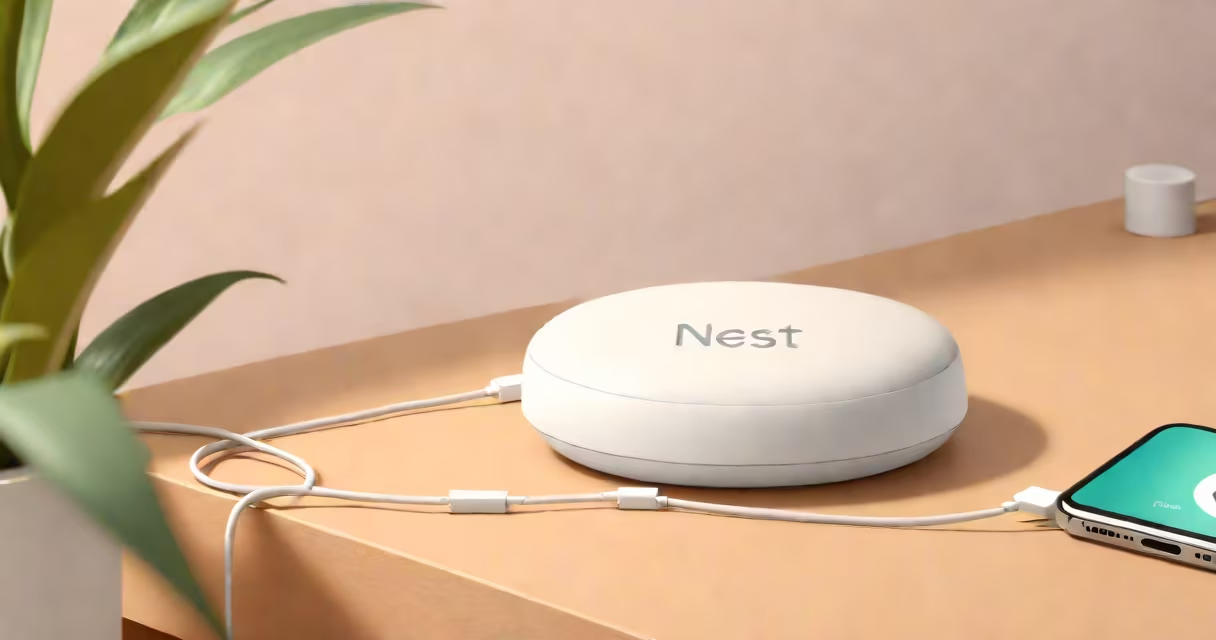
A google nest mini factory reset erases all personalized settings, removes linked accounts, and returns the device to its original out-of-box state. This process is required when troubleshooting connectivity issues, preparing the device for resale, or resolving persistent configuration errors.
Factory resetting the Nest Mini involves pressing and holding the physical reset button located beneath the device's base for 15 seconds. The LED ring turns solid white during the reset sequence and then flashes blue when the process completes. After rebooting, the device enters setup mode and prompts for Wi-Fi credentials and account linking via the Google Home app.
Resetting via the Google Home app is also available. Open the app, select the device, tap "Settings," choose "Reset," and confirm. This method requires the device to be online and accessible through the network. Both methods result in the same outcome: a clean slate for reconfiguration.
The factory reset triggers a firmware-level wipe of user data stored in volatile memory. The device's internal configuration files are replaced with defaults, and all cloud-linked services are unpaired. The reset does not erase data stored in your Google Account, such as voice history or routines, unless you manually delete them separately.
After the reset, the Nest Mini reboots and begins advertising itself as a new device on the local network. It broadcasts a temporary Wi-Fi access point named "Nest Mini Setup" to allow initial pairing. Users must connect their phone or tablet to this network and launch the Google Home app to proceed with setup.
During setup, the device downloads updated firmware from Google's servers. This ensures the latest security patches and feature updates are applied. The entire process typically takes 3-5 minutes from button press to full functionality.
There are two distinct reset paths: hardware-based and software-based. The hardware reset uses the physical button and works even if the device is offline or unresponsive. The software reset via the Google Home app requires an active connection and may fail if the device is unreachable.
| Method | Requires Power | Network Access Needed? | Best For |
|---|---|---|---|
| Physical Button (15 sec hold) | Yes | No | Bricked devices, unresponsive units |
| Google Home App Reset | Yes | Yes | Remote troubleshooting, routine maintenance |
Some users mistakenly believe a factory reset deletes all data permanently. This is incorrect. The reset clears only local configuration and cached credentials. Your Google Account retains logs of past interactions, and voice recordings remain in your Voice & Audio Activity archive unless deleted manually.
For privacy-conscious users, a factory reset is insufficient to remove all traces of usage. To fully erase audio history, visit myactivity.google.com and delete entries manually. Google's data retention policy allows users to manage this data directly.
One frequent error is releasing the reset button too early. Holding for fewer than 15 seconds results in no action. The device only recognizes the reset when the button is held continuously for the full duration. A blinking white light indicates the start of the process; a flashing blue light confirms completion.
Another mistake is attempting to reset while the device is disconnected from power. The reset button only functions when the unit is powered. Plugging in the device before initiating the reset avoids this issue.
I once attempted a factory reset on a Nest Mini that had stopped responding after a firmware update. The device was unresponsive to voice commands and failed to appear in the Google Home app. I pressed and held the reset button for 15 seconds while the device was plugged in. After 30 seconds, the LED flashed blue, and the device reappeared in the app within two minutes. The setup process completed successfully.
A factory reset is not the same as a power cycle. Restarting the device by unplugging and replugging it only resets the current session. It does not clear settings, unlink accounts, or fix deeper configuration problems.
It is also not equivalent to deleting the device from the Google Home app. Removing a device from the app only disconnects it from your account-it leaves the device intact and capable of being re-added. A factory reset physically wipes the device's configuration.
Some users confuse the reset button with the volume control. The reset button is recessed and requires a paperclip or similar tool. Accidentally pressing the volume button during setup can interfere with the pairing process, especially if the device is in a noisy environment.
Use a factory reset when the device fails to connect to Wi-Fi, shows inconsistent behavior, or becomes unresponsive. It's also recommended before selling or giving away the device to ensure no personal data remains.
According to Google's official support documentation, factory resetting is advised when troubleshooting persistent issues like "device not responding" or "unable to join network." The process is irreversible and cannot be undone without re-setup.
After resetting, always verify the device appears in the Google Home app under "Add Device." If it doesn't, check the router's DHCP settings and ensure the device is not blocked by MAC filtering.
After a factory reset, the device is vulnerable to unauthorized access until reconfigured. Always set up a secure Wi-Fi password and enable two-factor authentication on your Google Account. Avoid using weak passwords like "123456" or "password."
Google recommends enabling "Factory Reset Protection" (FRP) on all devices. This feature prevents unauthorized users from resetting and reusing a device without the original Google Account credentials. FRP is enabled by default on Nest Mini devices.
If you lose access to your Google Account, recovering a factory-reset Nest Mini requires account verification. You cannot bypass FRP without the original credentials. This protection is enforced by Google's backend systems and applies across all supported devices.
Reconfiguring the device after a factory reset restores all features, including voice control, alarms, and integration with other smart home devices. The setup process is identical to the first-time setup, ensuring consistency across installations.