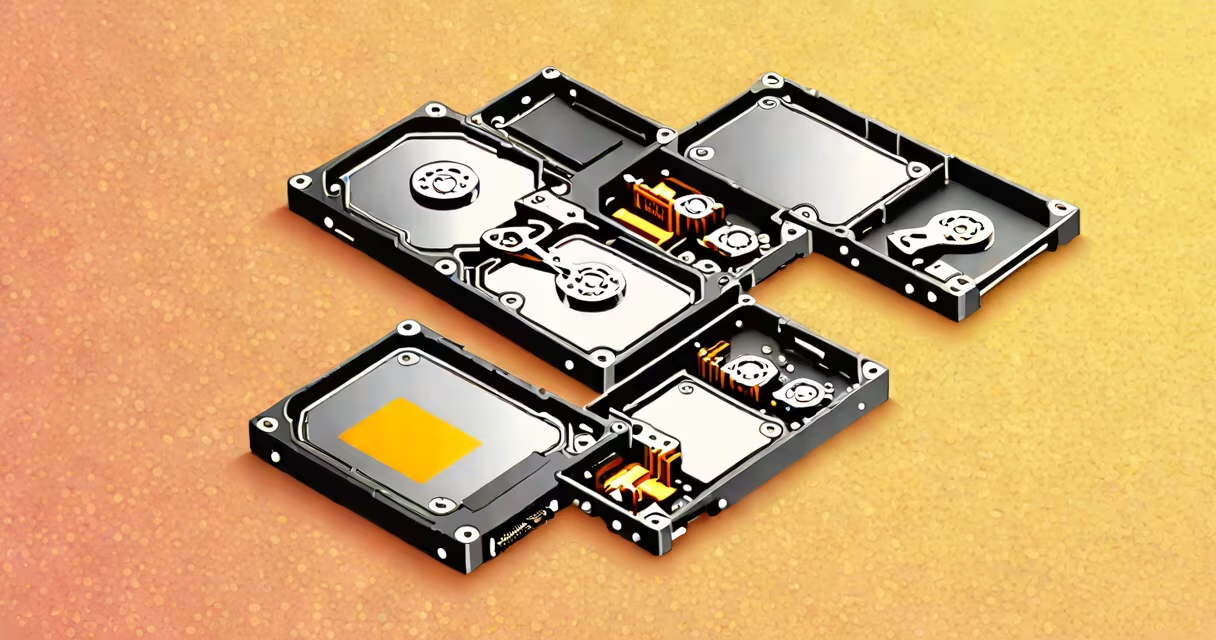
SSD vs standard hard drive compares two distinct storage technologies: SSDs use flash memory with no moving parts for speed and reliability, while standard hard drives rely on spinning platters and mechanical arms to read and write data. This fundamental difference affects performance, durability, power use, and cost.
SSDs store data on interconnected flash memory chips, accessed electronically. Standard hard drives use rotating magnetic disks and a physical read/write head that moves across them. The absence of moving components makes SSDs faster, quieter, and more resistant to shock. Hard drives use mechanical motion, which introduces latency, wear, and failure risk over time.
For most users, the choice between SSD and standard hard drive hinges on trade-offs between speed, capacity, and price. SSDs deliver boot times under 10 seconds, near-instant application launches, and consistent performance under load. Standard hard drives offer larger capacities at lower prices per gigabyte, making them ideal for bulk storage.
SSDs operate using NAND flash memory cells organized into pages and blocks. Data is written and read electronically through controllers managing wear leveling, error correction, and garbage collection. No physical movement occurs during operation, reducing access time to microseconds.
Standard hard drives use a spinning platter coated with magnetic material. A read/write head floats nanometers above the surface, detecting or altering magnetic polarity to represent binary data. The head moves radially across the disk, and the platter spins at 5,400 to 7,200 RPM. Access time depends on rotational latency and seek time, typically ranging from 8 to 15 milliseconds.
Modern SSDs use DRAM caches and advanced controllers to manage data flow efficiently. Hard drives rely on mechanical precision; even minor vibrations or drops can cause head crashes, leading to data loss. SSDs are less prone to physical damage, making them better suited for laptops and mobile devices.
SSDs come in several form factors and interface types. SATA III SSDs connect via the same interface as traditional hard drives but achieve speeds up to 550 MB/s. NVMe SSDs use PCIe lanes directly on the motherboard, reaching speeds over 3,500 MB/s. M.2 and U.2 are common form factors, with NVMe offering the highest performance.
Hard drives are primarily available in 3.5-inch desktop and 2.5-inch laptop sizes. Capacities range from 500 GB to 20 TB. Rotational speeds of 5,400 RPM and 7,200 RPM affect performance, with 7,200 RPM models delivering better sustained throughput.
| Feature | SSD (NVMe) | SSD (SATA) | Standard Hard Drive (7,200 RPM) |
|---|---|---|---|
| Sequential Read Speed | up to 7,000 MB/s | up to 550 MB/s | up to 200 MB/s |
| Random 4K Read (IOPS) | over 1 million | around 100,000 | about 150 |
| Latency | under 100 microseconds | around 1 millisecond | 8-15 milliseconds |
| Power Draw (idle) | 1-2 watts | 2-3 watts | 4-6 watts |
These numbers illustrate why SSDs dominate in responsiveness. A 1TB NVMe SSD boots Windows 11 in under 8 seconds. A 7,200 RPM hard drive takes 25-30 seconds. Applications like video editing software launch instantly on SSDs but stall briefly on hard drives due to slower file access.
SSDs are optimal for operating systems, applications, and frequently accessed files. They reduce wait times during startup, software loading, and file transfers. Most modern laptops and desktops use SSDs as primary drives.
Standard hard drives remain practical for media libraries, backups, and archival storage. A 4TB hard drive costs about $100, while a 4TB SSD exceeds $400. For storing thousands of photos, videos, or documents, hard drives offer better value per gigabyte.
A common mistake is assuming all SSDs perform equally. An entry-level SATA SSD may outperform a low-end hard drive, but it still lags behind high-end NVMe drives. Another confusion is equating capacity with speed-larger hard drives aren't faster, and smaller SSDs aren't necessarily slower.
One non-obvious fact: SSDs degrade over time due to limited write cycles. Modern SSDs use wear leveling and over-provisioning to extend lifespan. A 1TB SSD rated for 600 TBW (terabytes written) can handle 200GB of daily writes for over 8 years. Hard drives fail unpredictably due to mechanical wear, but their failure rate increases sharply after 5 years.
I built a development workstation with a 1TB NVMe SSD for the OS and tools, and a 4TB 7,200 RPM hard drive for project files and version control repositories. The system boots in 7 seconds. Visual Studio loads in under 2 seconds. Git operations complete in milliseconds.
When compiling a large C++ project, the SSD handles header file lookups and intermediate builds rapidly. The hard drive stores source code, build artifacts, and Docker images. After six months of continuous use, the SSD showed no performance degradation. The hard drive experienced two minor read errors, corrected by the drive's internal ECC.
This setup balances speed and cost. The SSD ensures responsive development, while the hard drive provides affordable space for large datasets. Using both avoids the trade-off inherent in choosing one over the other.
Price per gigabyte favors hard drives. A 2TB hard drive costs $70. A 2TB SSD costs $250. For budget systems or media servers, hard drives make economic sense. For gaming, creative work, or productivity, SSDs justify the cost through time savings.
Durability matters in portable devices. A dropped laptop with an SSD is more likely to retain data than one with a hard drive. SSDs consume less power, extending battery life in notebooks. Hard drives generate more heat and noise, which can affect quiet environments.
For most users, pairing an SSD with a hard drive offers the best balance. Use the SSD for the operating system and essential programs. Store large files on the hard drive. This hybrid approach leverages the strengths of both technologies.