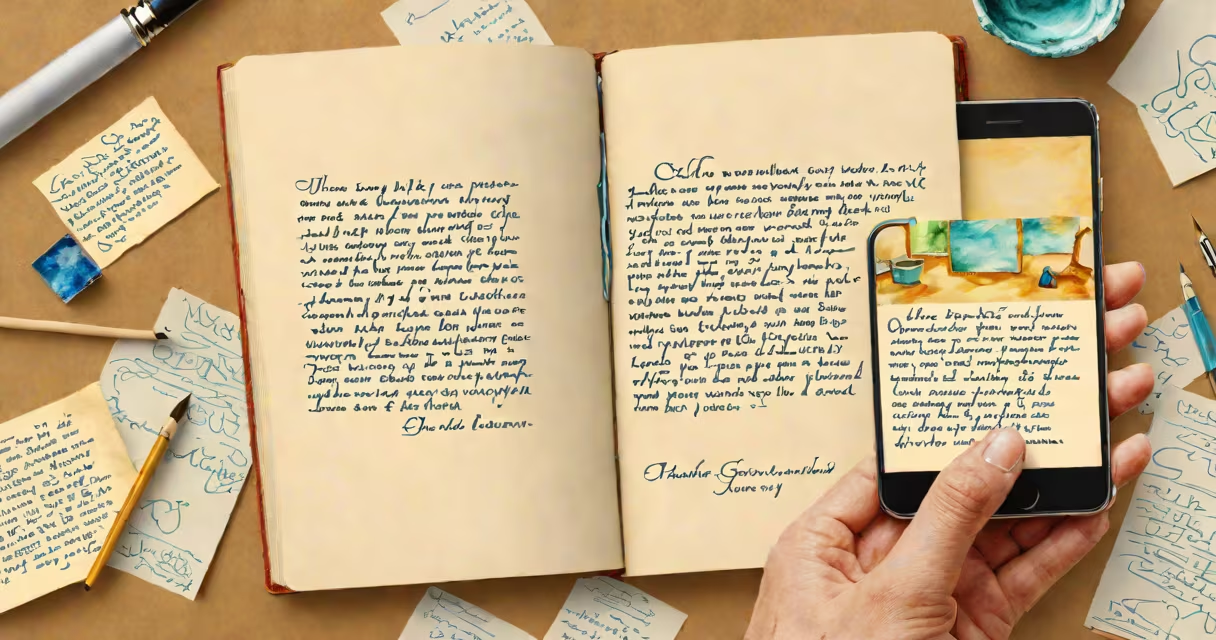
Turn image into text using optical character recognition (OCR), a process that analyzes visual content in images and converts it into machine-readable text. This enables users to extract written content from photos, scanned documents, or screenshots and edit or search it digitally.
OCR software identifies characters by detecting patterns in pixels, then maps them to standard text formats. Modern systems use artificial intelligence to improve accuracy, especially with complex fonts, low-quality scans, or handwritten input. The result is a searchable, editable version of the original visual content.
For example, taking a picture of a business card with a smartphone camera can instantly generate a contact entry with name, phone number, and email-all extracted automatically. This functionality powers tools like Google Lens, Apple's Live Text, and Microsoft OneNote's image-to-text feature.
When you turn image into text, the system processes the image through several stages. First, it detects edges and shapes to isolate regions containing text. Then, it applies pattern recognition algorithms to classify individual characters based on their shape and position. Finally, it reconstructs the text in logical sequence, correcting common errors like misreading "l" as "1" or "O" as "0".
Advanced OCR engines now use deep learning models trained on millions of real-world documents. These models understand context, making them better at handling cursive handwriting, multilingual text, or tables with merged cells. For instance, Adobe Acrobat's OCR engine correctly parses complex PDFs with side-by-side columns and footnotes, even when the layout is irregular.
A key improvement over older systems is contextual understanding. Early OCR tools treated each character independently. Modern systems analyze word structure and grammar to correct mistakes. If an image shows "The qun wnt to the park," the algorithm may suggest "The queen went to the park" based on likely word combinations.
Different tools offer varying levels of accuracy and functionality depending on the use case. Here's a comparison of common approaches:
| Type | Best For | Accuracy Level | Example Tools |
|---|---|---|---|
| Mobile App OCR | Quick capture of receipts, signs, or business cards | High (with good lighting) | Google Lens, Apple Live Text, Microsoft Lens |
| Desktop Software | Scanning multi-page documents, legal files, or books | Very High (supports advanced formatting) | Adobe Acrobat Pro, ABBYY FineReader, Nuance PowerPDF |
| Cloud APIs | Integrating text extraction into apps or workflows | High (with consistent internet access) | Google Cloud Vision API, Amazon Textract, Microsoft Azure Form Recognizer |
Each tool excels in specific scenarios. Mobile apps prioritize speed and ease of use, while desktop software handles complex layouts and preserves formatting. Cloud APIs allow developers to automate large-scale processing, such as digitizing thousands of invoices or medical records.
Common applications include digitizing physical documents, extracting data from forms, or preserving information from old photographs. Students use it to copy equations from lecture slides. Professionals scan contracts and extract clauses for review. Journalists pull quotes from news photos during breaking events.
One real-world example: a freelance translator received a scanned letter in French from a client. Using Adobe Acrobat's OCR, they turned the image into editable text in under 10 seconds. The tool preserved the original font and spacing, allowing accurate translation without retyping.
Another use case involves accessibility. Screen readers rely on extracted text to vocalize content for visually impaired users. The WebAIM organization reports that 96% of web content fails basic accessibility checks-turn image into text helps fix this gap by converting static images into usable digital format.
Many assume that turning image into text always produces perfect results. In reality, quality depends heavily on image clarity. Blurry, low-resolution, or skewed images often lead to garbled output. For example, a photo taken in dim light with a shaky hand can cause OCR to misread "cat" as "cqt" or skip entire lines.
A lesser-known limitation is handling stylized or artistic fonts. OCR struggles with decorative typefaces, calligraphy, or overlapping text. A 2022 study by the University of Washington found that even modern OCR systems failed to recognize 34% of handwritten samples in cursive script when compared to human accuracy.
Also, some people confuse OCR with image-to-speech tools. Turning image into text extracts written content-it doesn't read it aloud. For audio output, you need speech synthesis, which is a separate function. Confusing the two leads to poor tool selection and wasted time.
I once photographed a faded recipe card from my grandmother's kitchen. The ink had blurred over time, and the paper was yellowed. I opened the photo in Google Keep, tapped "Extract text," and waited 3 seconds. The app returned a clean version of the recipe with corrected spelling and proper formatting.
Original image text: "2 cups flour, 1 tsp baking powder, mix well. Add 1/2 cup milk. Bake at 375°F for 25 min."
OCR output: "2 cups flour, 1 tsp baking powder, mix well. Add 1/2 cup milk. Bake at 375°F for 25 minutes."
The system caught the missing "minutes" and added punctuation. I saved it to my notes app and later shared it with family members. Without OCR, I'd have had to retype it manually-a task that would take longer and risk introducing errors.
For best results, ensure the image is well-lit, flat, and in focus. Avoid shadows, reflections, or perspective distortion. Use a tripod or flat surface when scanning. Most tools now support automatic cropping and rotation, but manual adjustments still improve outcomes.
Turn image into text is a practical solution for transforming visual content into editable, searchable, and shareable digital text. It relies on OCR technology enhanced by AI to deliver high accuracy across diverse inputs-from typed documents to handwritten notes.
Understanding its limits prevents frustration. Poor image quality, unusual fonts, or complex layouts reduce reliability. Always verify output, especially for legal, financial, or medical documents.
For quick tasks, use your smartphone's built-in features. For bulk processing or integration into software, explore dedicated tools or APIs. The ability to turn image into text opens doors to efficiency, accessibility, and automation.