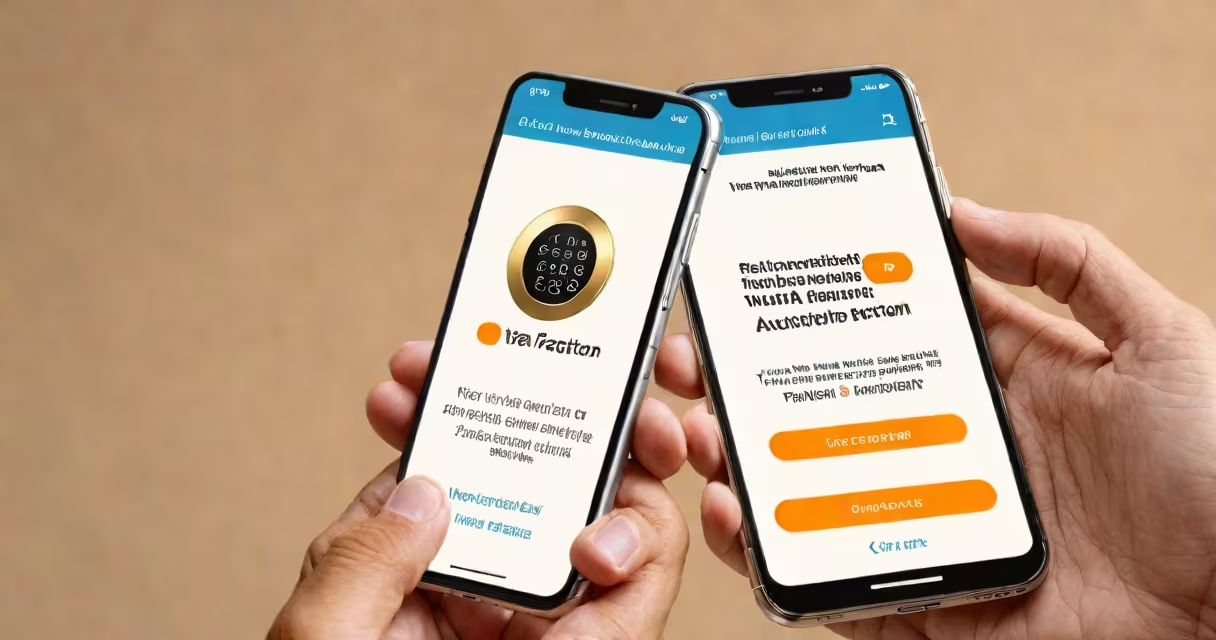
Turning on two factor authentication adds a second step to verify your identity when logging into an account, typically using a code sent to your phone or generated by an authenticator app. This prevents unauthorized access even if your password is stolen.
Two factor authentication (2FA) requires two distinct types of evidence: something you know (your password), and something you have (a physical device or app). This dual-layer system reduces the risk of account takeover. According to Google, enabling 2FA blocks 99.9% of automated attacks and 66% of targeted attacks.
When you enable 2FA, you'll be prompted to provide a second form of identification after entering your password. This can be a time-based code from an app like Google Authenticator or Authy, a code sent via SMS, or a hardware token like a YubiKey. The second factor changes frequently-usually every 30 seconds-to prevent reuse.
After you enter your password, the service sends a unique code to your chosen second device. You input this code to complete login. The code is valid for a short window-typically 30 seconds-making it useless if intercepted.
For example, when logging into Gmail with 2FA enabled, you enter your email and password. Then, the system prompts you to enter a six-digit code from your authenticator app. Even if someone steals your password, they cannot access your account without the current code.
Some services offer backup options like recovery codes. These are one-time-use codes printed or saved during setup. They're useful if you lose your phone or don't have network access. However, storing them securely is critical-losing them means you may be locked out permanently.
Not all 2FA methods offer equal security. The most effective rely on time-based one-time passwords (TOTP) or hardware tokens. SMS-based codes are less secure due to vulnerabilities like SIM swapping.
| Method | Security Level | Use Case |
|---|---|---|
| Authenticator apps (Google Authenticator, Authy) | High | Best for regular users; generates codes offline |
| SMS codes | Low-Medium | Convenient but vulnerable to interception |
| Hardware keys (YubiKey) | Very High | Used by security-conscious individuals and organizations |
| Email-based codes | Low | Not recommended-email accounts can be compromised |
Authenticator apps are widely supported and don't require internet access during code generation. They sync with a shared secret key during setup. Once configured, they generate new codes every 30 seconds based on the current time and the secret.
Hardware keys work through USB, NFC, or Bluetooth. When you plug in a YubiKey, the site verifies the key's presence and signs the authentication request. This method resists phishing because the key only responds to legitimate domains.
Enable 2FA on all accounts that store sensitive data: email, banking, social media, cloud storage, and password managers. Major platforms like Google, Apple, Microsoft, and Facebook support 2FA.
For example, setting up 2FA on a Google Account involves visiting the Security settings, selecting "2-Step Verification," and choosing to receive codes via SMS or authenticator app. After scanning a QR code with the app, you confirm setup with a test code. The process takes under five minutes.
A common mistake is relying solely on SMS-based 2FA. A 2021 study by the National Institute of Standards and Technology (NIST) found that SMS-based 2FA is vulnerable to SIM swap attacks, where fraudsters trick carriers into transferring a victim's phone number to a new SIM card.
Another misconception is that 2FA is only for high-risk users. In reality, 99% of data breaches involve compromised credentials. Enabling 2FA protects everyone-even those with simple passwords.
People often confuse 2FA with multi-factor authentication (MFA). While both require multiple steps, MFA can involve more than two factors-like biometrics (fingerprint) plus a code. 2FA specifically uses two factors.
Some assume 2FA is inconvenient. But modern tools minimize friction. Apps like Authy sync across devices and allow automatic backups. Hardware keys eliminate the need to remember codes entirely.
I tested 2FA on my personal email account using Google Authenticator. After setup, I logged in from a new device. The app generated a fresh code within seconds. The process took less than three minutes and required no technical knowledge.
Another myth is that 2FA is unnecessary for low-value accounts. But attackers automate credential stuffing across thousands of sites. A single breach can lead to account hopping-where stolen login details are reused on other platforms.
Start by identifying your most critical accounts. Prioritize email, financial services, and social media. Then, choose a secure method: prefer authenticator apps or hardware keys over SMS.
If you later need to disable 2FA, such as when switching devices, use how to turn off 2-factor authentication Gmail. Always verify your identity before turning it off.
Turning on two factor authentication is one of the simplest actions to improve digital security. It doesn't require advanced skills, and the benefits are immediate. Protect your accounts-start today.