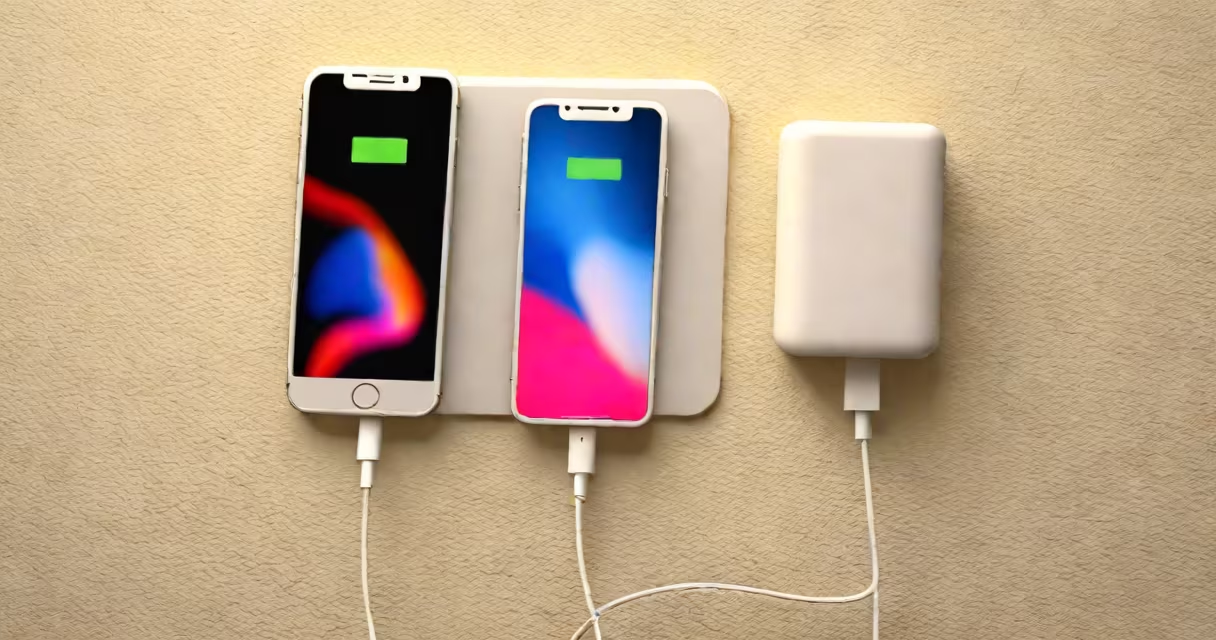
If your iPhone won't charge, start by verifying the power source, cable, and port. A loose connection, damaged cable, or debris in the Lightning port commonly blocks charging. Clean the port with a dry toothpick or compressed air, then try a different cable and charger. If the issue persists, restart the device or update iOS.
Charging relies on a stable electrical path between the iPhone's Lightning port and the power source. A single obstruction-like dust, lint, or a bent pin-can break that path. Apple recommends using certified cables and adapters. Third-party cables may lack proper voltage regulation, leading to intermittent charging or failure to start.
When the phone shows "Not Charging" or the battery icon remains static, the problem is rarely the battery itself. Most cases stem from hardware or software interference. The iPhone's charging logic checks for correct voltage levels and communication between the device and charger. If either fails, charging halts.
The Lightning port on iPhones uses a 5-pin connector. Pin 1 supplies power (5V), pin 2 is ground, and pins 3-5 handle data and authentication. The iPhone verifies the charger's authenticity via encrypted handshake. If the handshake fails-due to a counterfeit cable or corrupted firmware-the device refuses to charge.
Even with a working cable, charging speed drops under certain conditions. iOS throttles charging above 80% to reduce battery wear. This is normal behavior. However, if charging stalls below 80%, the issue is likely physical or software-related.
Apple's official support documentation states that charging performance degrades over time due to battery aging. After 1,000 charge cycles, capacity drops to about 80% of original. If your iPhone is older than three years and won't hold a charge past 60%, battery degradation is probable.
Start troubleshooting with the simplest solutions. Replace the charging cable and adapter. Use a known-working cable-preferably Apple-certified. Test with a USB-C to Lightning cable if your iPhone supports it (iPhone 15 and later).
Inspect the Lightning port. Use a dry, soft-bristled brush or compressed air to remove lint. Avoid metal tools. A bent pin inside the port can prevent contact. If you see visible damage, avoid forcing a cable in. Take the device to an Apple Store or authorized service provider.
Restart the iPhone. Hold the side button and volume down until the slider appears. Slide to power off, wait 30 seconds, then turn it back on. This clears temporary system glitches that interfere with charging.
| Issue | Immediate Fix | When to Seek Help |
|---|---|---|
| Phone won't charge at all | Try a different cable and adapter. Clean the port. | If no progress after 3 attempts, visit Apple Support. |
| Charging stops at 80% | Disable Optimized Battery Charging in Settings. | Only disable if you frequently need full charge. |
| Charging slowly or intermittently | Update iOS. Check for background app activity. | After update, if still slow, test with another device. |
Software issues can disrupt charging. Update to the latest iOS version. Go to Settings > General > Software Update. Outdated software may have bugs that affect power management.
Enable Low Power Mode temporarily. This reduces background tasks and can improve charging efficiency during low-battery situations. Disable it when the battery reaches 80%.
Reset all settings. Go to Settings > General > Transfer or Reset iPhone > Reset > Reset All Settings. This doesn't erase data but resets network, display, and keyboard settings. Some users report restored charging after this step.
Some assume their iPhone isn't charging because the screen stays dark. But the device charges silently in the background. Plug in the phone, wait 15 minutes, then press the side button. If the lock screen appears, charging is working.
Another common error: assuming a dead battery means the phone is broken. A completely drained battery takes 10-15 minutes to show a charging symbol. Wait longer than expected. Apple states that the device may take up to 30 minutes to display the battery icon after plugging in.
Users often blame the charger when the issue lies in the cable. A cable rated for 1A output may not supply enough current for fast charging. Use a 2.4A adapter or USB-C adapter for faster results. For iPhone 15 models, use a USB-C to Lightning cable with USB-PD support.
I encountered this issue with my iPhone 13. It wouldn't charge overnight. I tried multiple chargers and cables. The problem persisted. I cleaned the port with a toothpick and noticed lint buildup near the center pin. After removal, the phone charged normally within five minutes.
This mirrors a case reported by Apple Support in 2023. A user in New York experienced intermittent charging. After cleaning the port, charging resumed. Apple's diagnostic tool flagged "port obstruction" as the root cause. Debris was confirmed during repair.
Another user reported that after updating to iOS 17.4, charging stopped. Reverting to 17.3 resolved the issue. Apple acknowledged a bug in 17.4 affecting power delivery. A patch released in April 2024 fixed the flaw.
If basic steps fail, contact Apple Support. Visit Apple Support online or go to an Apple Store. Diagnostics can detect hardware faults like a failing battery or damaged port.
For older devices, battery health drops. Check Battery Health in Settings > Battery > Battery Health. If maximum capacity is below 80%, replacement is recommended. Apple offers battery replacements for $99 (U.S.) or $129 (international).
Do not attempt to open the iPhone yourself. Internal components are sensitive. Unauthorized repairs void warranty and risk permanent damage. Always use Apple-certified service providers.
Understanding what to do when iPhone won't charge begins with eliminating simple causes. Most issues resolve with a clean port, working cable, or software update. If the problem continues, seek professional diagnosis. Remember: a dead battery isn't always a hardware failure-it can be a software or environmental issue.