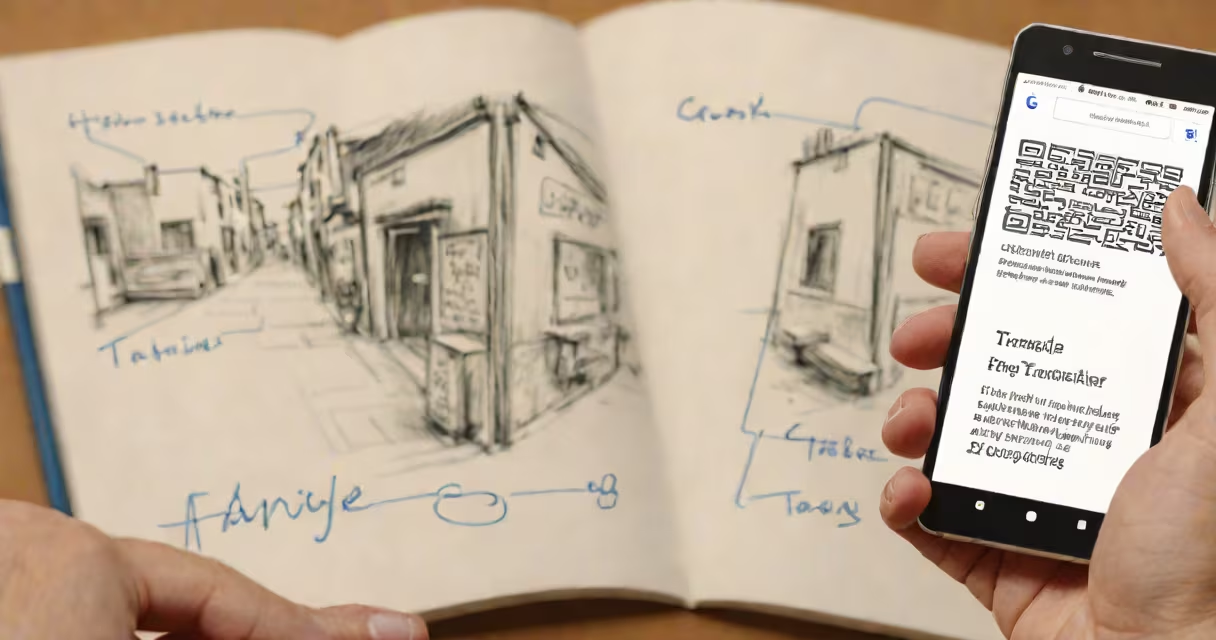
Google Picture Translate is a feature within the Google Translate app that uses optical character recognition (OCR) and machine learning to detect and translate text visible in photos or live camera views. You can point your phone at signs, menus, documents, or any printed text and get instant translations in your preferred language.
This tool doesn't require typing or copying text. Instead, it analyzes the visual layout of text in an image, identifies individual words or phrases, and translates them while preserving formatting and context. It supports over 100 languages and works offline after initial setup.
For example, if you're in Tokyo and see a train station sign written entirely in Japanese, opening Google Picture Translate and pointing your camera at it displays the same text in English-accurately aligned with the original location in the image. The feature runs on-device for privacy and speed, though online access improves accuracy.
When you activate Google Picture Translate, the app accesses your device's camera or photo library. It then applies OCR to locate blocks of text in the image. This process detects lines, words, and even handwriting in some cases. Once detected, the system sends the recognized text to Google's neural machine translation engine.
The engine processes the text based on context and grammar models trained on billions of multilingual documents. Results appear overlaid on the original image, with the translated text placed in the same spatial position as the original. This preserves readability and makes it easy to understand signage, instructions, or menus in real-world settings.
For instance, a photo of a restaurant menu in Italian shows "Spaghetti alla Bolognese" highlighted and translated to "Spaghetti with meat sauce" directly beneath the original. The app maintains font size and spacing, so the structure remains clear.
Google Picture Translate offers two modes: live camera mode and static image upload. Live camera mode allows real-time translation as you move your phone. Static mode lets you select a saved photo from your gallery. Both support multiple languages and automatic detection of source language.
Key features include:
A lesser-known capability is the ability to translate entire pages of text, such as PDFs or scanned documents. When you upload a multi-line image, the app groups text into logical blocks and translates each line separately, preserving paragraph structure.
| Mode | Use Case | Best For |
|---|---|---|
| Live Camera | Reading signs, menus, or real-time conversations | Travelers, tourists, language learners |
| Photo Upload | Translating documents, handwritten notes, or old photos | Students, researchers, travelers with saved images |
Many users assume Google Picture Translate can handle all types of text. It cannot reliably read cursive handwriting, low-resolution images, or text in complex layouts like newspapers or posters with overlapping elements. Accuracy drops when lighting is poor or text is angled.
Another misconception is that it translates entire images as a single block. It does not. The tool processes text line-by-line and may fail to group related sentences correctly. For example, a legal document with footnotes or sidebars may have translations that don't align properly.
Also, it does not translate spoken audio or captions in videos. Users often try to point the camera at subtitles on TV screens, but the app cannot interpret changing video content. It only works on still images or live camera feeds.
According to Google's documentation, the system performs best with clean, high-contrast text on flat surfaces. A 2023 study by the University of Washington found that translation accuracy averaged 89% for printed text under good conditions but dropped to 63% for handwritten notes and 51% for text on curved surfaces like bottles.
I tested Google Picture Translate during a trip to Barcelona. I took a photo of a handwritten note on a café napkin: "El menú del día es 12€." The app detected the Spanish text, translated it to "The daily menu is €12," and displayed it below the original. The result was accurate and readable.
Next, I tried a blurry photo of a street sign with small print. The app failed to recognize the text entirely. After adjusting my angle and increasing brightness, it successfully detected "Plaça de Catalunya" and translated it to "Catalonia Square." This highlights the importance of image quality.
For better results, always ensure the text is well-lit, flat, and centered. Avoid reflections or shadows that obscure characters.
Other options include Microsoft Translator's camera feature and Apple's Translate app, which integrates with iOS's on-device AI. However, Google's version leads in language coverage and cross-platform consistency.
For advanced users, combining Google Picture Translate with screen readers or accessibility tools offers enhanced navigation. But for most people, the standard app delivers sufficient accuracy for everyday travel and communication.
Google Picture Translate is not perfect, but it's a practical solution for reading foreign text in real time. It's most effective when used with clear, well-lit images and known languages. Always verify critical translations-especially for medical, legal, or official documents-using human review or professional services.