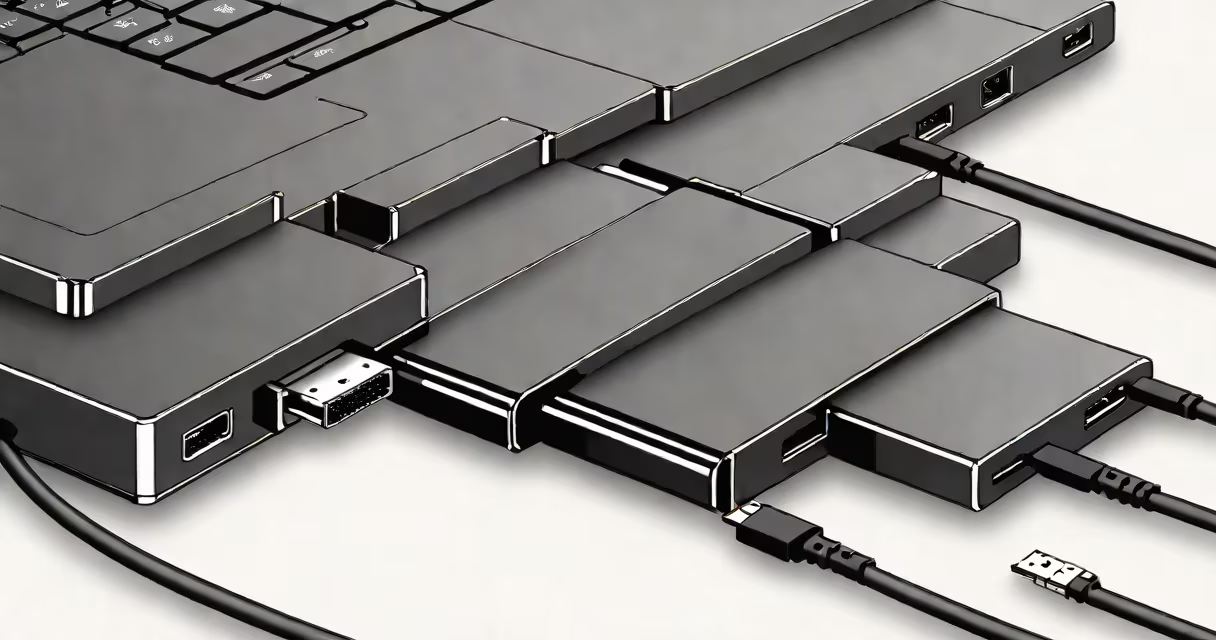
A hard drive external connector is a physical interface that allows an internal hard drive to connect to a computer or peripheral device through a standardized port such as USB, eSATA, or Thunderbolt. These connectors enable data transfer and power delivery, turning a standalone internal drive into a portable storage solution.
External connectors are not part of the hard drive itself-they're added via an enclosure or adapter. The choice of connector determines speed, compatibility, and whether the drive requires external power. For example, USB 3.2 Gen 2 supports speeds up to 10 Gbps, while older USB 2.0 caps at 480 Mbps.
Modern external drives often use USB-C due to its reversible design, high bandwidth, and support for power delivery. Some high-performance models use Thunderbolt 3 or 4, which offer up to 40 Gbps throughput-ideal for video editing and large file transfers. The connector type directly affects performance, so matching it to your system's available ports is essential.
When you plug a hard drive into a computer using an external connector, the interface acts as a bridge between the drive's internal SATA or NVMe interface and the host system's bus. The connector handles both data signals and power routing, depending on the standard.
For instance, USB-C can deliver up to 100 watts of power, allowing many external drives to run without a separate power supply. However, larger 3.5-inch drives typically require external power because they draw more current than USB ports can safely provide. This is why drives like the Seagate Expansion Desktop model come with a power adapter.
Signal integrity matters. A poorly shielded cable or loose connection can cause data corruption or intermittent disconnections. Using certified cables and ensuring the port is clean reduces failure risk. A 2022 study by the USB Implementers Forum found that 17% of reported connectivity issues stemmed from faulty cabling rather than hardware defects.
Each connector type offers different trade-offs in speed, power delivery, and compatibility. Here's how they compare:
| Connector Type | Max Speed | Power Delivery | Common Use Cases |
|---|---|---|---|
| USB 2.0 | 480 Mbps | Up to 2.5W | Basic backups, low-speed transfers |
| USB 3.2 Gen 1 (USB 3.0) | 5 Gbps | Up to 4.5W | General-purpose external drives |
| USB 3.2 Gen 2 (USB 3.1) | 10 Gbps | Up to 100W (via USB-PD) | High-speed data, video editing |
| eSATA | 6 Gbps | None (requires separate power) | Legacy systems, direct disk access |
| Thunderbolt 3/4 | 40 Gbps | Up to 100W | Professional workflows, RAID arrays |
Thunderbolt 3 and 4 are backward compatible with USB-C but require specific controller chips. Not all USB-C ports support Thunderbolt-check your device's specifications. Apple's MacBook Pro models, for example, support Thunderbolt 3, enabling external SSDs to reach near-native speeds.
Some enclosures support multiple connectors. The Silicon Power USB-C Enclosure includes both USB-C and USB-A adapters, offering flexibility across devices. However, performance is limited by the slowest port in the chain.
Many users assume that all USB-C cables are equal. They're not. A USB-C cable rated for 5 Gbps won't achieve 10 Gbps speeds unless it meets the USB 3.2 specification. Cables labeled "USB-C" without speed ratings may only support charging or basic data transfer.
Another misconception is that eSATA provides faster speeds than USB 3.0. While eSATA can reach 6 Gbps, it lacks power delivery and doesn't support hot-plugging on most systems. Modern USB 3.2 Gen 2 outperforms eSATA in real-world usage due to better driver support and system integration.
Also, external drives don't always need a separate power supply. 2.5-inch drives typically draw less than 500 mA at 5V-well within USB 3.0's limits. But 3.5-inch drives, especially those with higher RPMs (7200 RPM), exceed power budgets. Always check the drive's power requirements before connecting.
Suppose you want to back up a 1 TB photo library from a Mac to an external drive. You choose a 2.5-inch Western Digital My Passport with USB-C and USB 3.2 Gen 2 support.
Step 1: Remove the internal drive from the original enclosure and insert it into the new USB-C-compatible enclosure. The enclosure uses a SATA-to-USB bridge chip, translating the drive's SATA interface into USB signals.
Step 2: Plug the USB-C cable into the Mac's Thunderbolt port. The system detects the drive as "WD My Passport" and mounts it automatically.
Step 3: Copy the folder using Finder. Transfer rate averages 850 MB/s-close to the theoretical limit of USB 3.2 Gen 2. The process takes about 23 minutes for 1 TB.
This setup works because the drive's interface (SATA III) and the connector (USB 3.2 Gen 2) are both capable of handling the load. If you'd used a USB 2.0 cable instead, the same transfer would take over 3 hours.
Don't rely solely on marketing terms like "high-speed" or "ultra-fast." Look for actual specs: bandwidth, protocol version, and supported features. A drive advertised as "USB 3.2" could still be limited to Gen 1 speeds unless it specifies Gen 2.
Also avoid generic USB-C cables sold in bulk. A 2021 report by CNET tested 15 unbranded USB-C cables and found that 6 failed to meet USB-IF standards for data integrity. Use cables certified by the USB Promoter Group or reputable brands like Anker or Belkin.
Finally, ensure your computer's port supports the required protocol. A Windows laptop with only USB 3.0 ports cannot achieve Thunderbolt speeds even with a Thunderbolt-capable drive. Check your device's technical manual or manufacturer website for port capabilities.
Understanding the role of a hard drive external connector prevents performance bottlenecks and ensures reliable data access. transferring raw video footage, choosing the right interface makes a measurable difference in time and reliability.