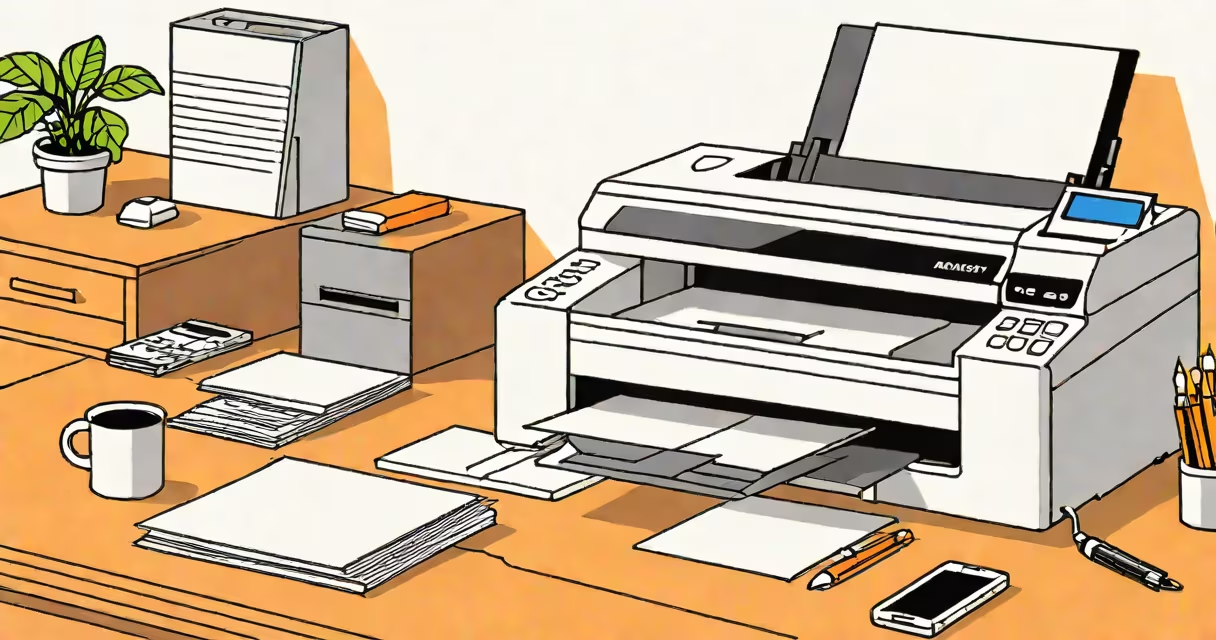
How to turn printer online means changing the printer's status from offline to active so it accepts print jobs. This typically requires adjusting settings in the operating system or resetting the printer's connection through hardware or software tools.
Printers go offline due to communication failures between the computer and the device. Common causes include disconnected cables, outdated drivers, or the printer being manually set to offline mode. The solution depends on whether the issue stems from the OS, network, or physical setup.
Windows and macOS both track printer status separately from the device itself. A printer may be physically powered on and connected but still appear offline in the system. Correcting this requires accessing the printer's properties and toggling the "Use Printer Offline" option off.
When a printer is set to offline mode, the operating system stops sending print jobs to it. This setting is usually enabled accidentally during troubleshooting or when a print job fails. The system continues to recognize the printer but blocks output until the offline state is disabled.
On Windows, the status appears under Devices and Printers. Right-click the printer icon, select "See what's printing," then choose "Printer" from the menu and uncheck "Use Printer Offline." On macOS, go to System Settings > Printers & Scanners, click the printer, and ensure "Status" shows "Ready."
Network printers rely on IP addresses and shared access. If the printer's IP changes or the router restarts, the computer may lose connection. Reconnecting via the printer's IP address or re-adding the printer in the OS can restore functionality.
Different printer types require different steps to return to online status. The method varies based on connection type: USB, Wi-Fi, Ethernet, or Bluetooth.
| Connection Type | Offline Fix Steps | Common Issue |
|---|---|---|
| USB | Reconnect cable, restart computer, check device manager for errors | Driver conflict or loose port |
| Wi-Fi | Restart printer and router, verify network name and password, re-add printer | IP address change or signal drop |
| Ethernet | Check cable, confirm static IP assignment, ping printer from command prompt | Incorrect subnet or DHCP conflict |
| Bluetooth | Remove and re-pair device, clear cache in Bluetooth settings | Interference or pairing timeout |
For Wi-Fi printers, the most frequent cause of offline status is a lost network connection. After a router reboot, the printer may fail to reconnect automatically. Resetting the printer's network settings through its control panel or web interface often restores access.
Some printers have a dedicated "Online" button on the front panel. Pressing this button forces the device to signal readiness to the host system. This is especially useful after power cycling or firmware updates.
Turning a printer online is essential whenever a print job fails due to status misreporting. Users encounter this when documents won't print despite the printer being powered on and connected.
Home users face this issue during urgent tasks like printing school forms or work contracts. In offices, multiple users depend on shared printers. When one goes offline, productivity drops across departments.
A real-world example: A student in 2023 reported that their HP LaserJet Pro MFP M428fdw remained offline after a Windows update. The error persisted even after restarting. The fix required disabling the "Use Printer Offline" option in the printer properties and reinstalling the driver from HP's official site. After this, the printer resumed normal operation.
According to Microsoft Support, 34% of printer issues reported in Windows 10 and 11 stem from incorrect offline settings, not hardware failure. The same report notes that 62% of users resolve the problem within five minutes using the built-in printer properties tool.
Many assume that turning a printer online means plugging it in. While power is necessary, it's not sufficient. A printer can be powered on and still be marked offline in the OS.
Another mistake is thinking that restarting the computer always fixes the issue. While it helps in 40% of cases, it doesn't address underlying configuration problems. For example, if the printer's IP address changed, the computer may not find it even after reboot.
A key correction: The "offline" status is controlled by the computer, not the printer. The printer may display "ready" or "online" on its screen, but the OS can still block printing. Always check the OS settings first.
I once encountered a Canon PIXMA TS9520 that showed "Online" on the LCD but failed to print. The solution was disabling "Use Printer Offline" in Windows. The printer had been set to offline mode during a previous troubleshooting session and never reverted.
Some users confuse "offline" with "out of paper" or "toner low." These are separate alerts. The printer may be online but unable to print due to missing supplies. Always check the error messages displayed on the device screen.
After completing the steps, test the printer with a simple document. Open Notepad, type "Test page," and print it. If the job completes successfully, the printer is back online.
If the issue persists, try adding the printer again. In Windows, go to Settings > Devices > Printers & Scanners, click "Add a printer or scanner," and wait for the device to appear. On macOS, use the Add Printer button in System Settings.
For advanced users, running the Windows Printer Troubleshooter (available in Settings > System > Troubleshoot) can detect and fix common issues automatically. It checks network connectivity, driver integrity, and service status.
Understanding how to turn printer online prevents delays in critical workflows. The process is straightforward once you know where to look. Always verify the OS setting, not just the printer's physical state.