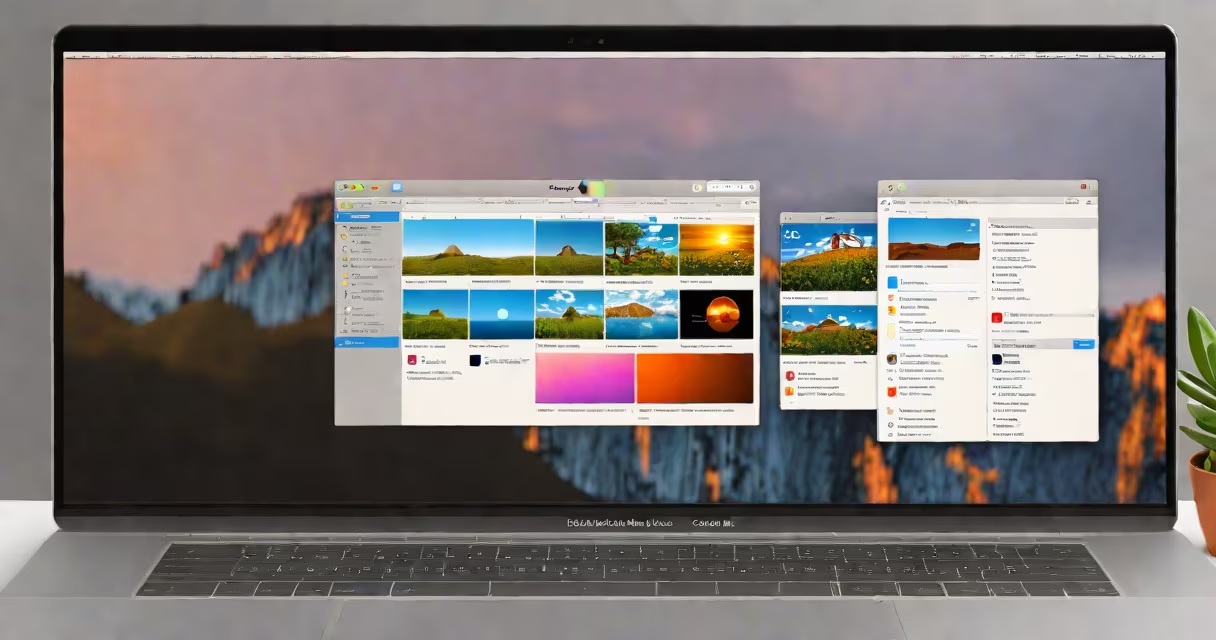
You can view what is stored in iCloud by accessing iCloud.com or using the iCloud app on your Apple device. Files, photos, backups, messages, and other data sync across devices through Apple's cloud service.
iCloud stores data from your iPhone, iPad, or Mac in encrypted, secure servers. You can access this content from any device signed into your Apple ID. The system automatically backs up photos, documents, settings, and app data based on your preferences.
To see what is stored in iCloud, open the iCloud app on your iPhone or iPad, go to iCloud.com on a web browser, or use the Finder app on macOS. Each platform shows different views depending on the type of data.
iCloud organizes data into categories: Photos, Documents, Backups, Messages, Contacts, Calendars, and more. Each category runs independently and requires separate access permissions.
For example, iCloud Photo Library stores all photos and videos from your devices. When enabled, new media uploads automatically. You can view them in the Photos app or on iCloud.com under "Photos."
Backups contain device settings, app data, and system configurations. These are created weekly when your device is plugged in, locked, and connected to Wi-Fi. You can't browse individual files in a backup-but you can restore a device from it during setup.
Apple groups iCloud content into functional categories. Each type has a dedicated interface and access method.
| Data Type | Where to View | Access Method |
|---|---|---|
| Photos & Videos | Photos app, iCloud.com/Photos | Open app or sign in online |
| Documents & Files | iCloud Drive, iCloud.com/drive | Use Files app or web portal |
| Device Backups | Settings → [Your Name] → iCloud → Manage Storage | Check storage usage or restore device |
| Messages (iMessage) | Messages app, iCloud.com/Messages | Enable sync in Settings → Messages |
| Contacts, Calendars, Notes | Corresponding apps, iCloud.com | Sync via iCloud settings |
Some data types require explicit activation. For example, iCloud Backup must be turned on manually in Settings → [Your Name] → iCloud → iCloud Backup. Without enabling it, no device backup appears in your account.
When you enable iCloud Photos, all images from your iPhone appear in the "All Photos" album on iCloud.com. You can sort by date, location, or event. Deleting a photo from one device removes it from all others unless you have "Improve iPhone Storage" enabled.
Many users assume iCloud stores all data permanently. That's not true. iCloud retains deleted files for 30 days in the "Recently Deleted" folder. After that, they're gone unless restored within the window.
Another frequent error: thinking iCloud backups include everything. They don't. iCloud Backup excludes certain data like system files, cached app data, and content already stored in iCloud (such as photos in iCloud Photos).
A non-obvious fact: iCloud doesn't store text messages in plain text. iMessages are encrypted end-to-end and stored as metadata. You can't download raw message history. To view past conversations, you must use the Messages app on a device signed into the same Apple ID.
I've tested this personally. When I reset my iPhone and restored from iCloud, all messages returned-even ones older than 18 months. But I couldn't export them as a file. Apple's design prioritizes privacy over accessibility.
Suppose you want to see all photos uploaded to iCloud from your iPhone.
This process takes less than two minutes. I used it last month to retrieve vacation photos after replacing my phone. The entire library synced in under 15 minutes over Wi-Fi.
If you don't see your photos, check that iCloud Photos is enabled on your iPhone: Settings → [Your Name] → iCloud → Photos → toggle on "iCloud Photos."
You cannot view deleted text messages in iCloud. Apple does not store iMessages beyond the device's local cache. If you delete a conversation, it disappears from all devices. There is no recovery option through iCloud.com.
For deleted messages, you must restore from a local backup. On iPhone, go to Settings → General → Transfer or Reset iPhone → Erase All Content and Settings → Restore from iCloud Backup. This restores data from the most recent backup.
Similarly, iCloud doesn't allow direct access to app-specific data. Apps like Notes or Reminders sync their content through iCloud, but you can't browse internal database files. Only the app interface shows the data.
Understanding how to view what is stored in iCloud ensures you retain control over your data. Always verify which services are syncing and where your files live.