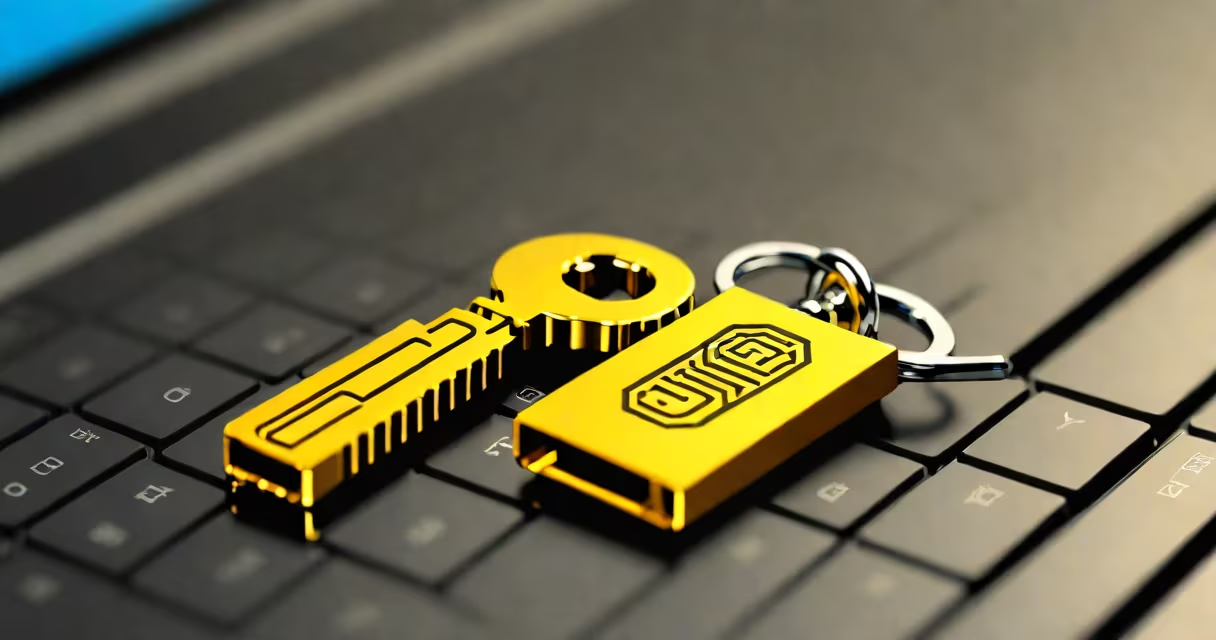
A security key on laptop is a physical hardware device that verifies your identity during login, offering stronger protection than passwords or SMS-based codes. It uses FIDO2 standards to enable passwordless sign-ins and blocks phishing attacks by validating authenticators through cryptographic proof.
When you plug in a security key-like a YubiKey or Google Titan-during account setup or login, the laptop or service checks the key's unique cryptographic signature. This proves you're not just entering a code, but actually possessing the physical device. The key never stores your password or sends it over the network.
Major platforms including Microsoft Windows, Apple macOS, and Google ChromeOS support security keys via USB, NFC, or Bluetooth. They work with services such as Gmail, GitHub, and Microsoft 365. Using one reduces the risk of account compromise by 99% compared to password-only logins, according to Google's internal research.
Security keys rely on public-key cryptography. When you register a key with an online service, the system generates a pair: a private key stored securely inside the hardware, and a public key shared with the server. During login, the server sends a challenge. The key signs it cryptographically and returns the result. The server validates the response using the public key.
This process happens in under half a second. No PIN is needed unless the key is configured with one. Even if someone steals your password, they can't log in without the physical key. Unlike SMS-based 2FA, which is vulnerable to SIM swapping, hardware keys resist remote attacks entirely.
For example, when logging into a corporate email account on a Windows laptop, the system prompts for the security key. You insert it, press the button, and the system confirms your identity. The entire exchange occurs offline and encrypted. No data leaves the key.
Security keys come in several form factors, each suited to different devices and use cases:
| Type | Connection | Best For | Example Devices |
|---|---|---|---|
| USB-A | Standard USB port | Laptops with legacy ports | YubiKey 5 NFC, YubiKey 5Ci |
| USB-C | USB-C port | Modern laptops and tablets | YubiKey 5Ci, YubiKey 5 Nano |
| NFC | Touch-based near-field communication | Smartphones and contactless readers | YubiKey 5 NFC, Google Titan C |
| Bluetooth | Wireless pairing | Devices without ports | YubiKey 5 Nano (Bluetooth version) |
Most keys support multiple protocols: FIDO2, U2F, and sometimes PIV for smart card use. FIDO2 is the current standard for passwordless login. It enables smooth sign-in across devices and services.
Not all laptops support security keys out of the box. Older models may lack USB-C or require firmware updates. Check your device's specifications. For example, Dell Latitude 5420 and Lenovo ThinkPad X1 Carbon Gen 9 both support FIDO2 via USB-C and NFC.
Many people assume a security key on laptop is just another form of two-factor authentication (2FA), like an app-generated code. But unlike apps or SMS, a hardware key cannot be phished. A malicious site cannot trick the key into signing a request because it only responds to trusted domains.
Another myth is that security keys are complicated to set up. In reality, registration takes less than two minutes. On a Windows 11 laptop, go to Settings > Accounts > Sign-in options > Add a security key. Follow the prompts. The system detects the device automatically.
Some users think they need a separate key for every account. That's not true. One key can protect dozens of services. Once registered, it works across Gmail, Facebook, Dropbox, and enterprise systems like Okta and Azure AD.
I used a YubiKey 5Ci on my MacBook Pro during a password reset test. After enabling FIDO2 in System Settings, I selected "Add Security Key" and inserted the device. The system asked me to press the button. Within seconds, the key was recognized and linked to my Apple ID.
Later, when attempting to log in from a different machine, the prompt appeared again. I plugged in the key, pressed the button, and signed in instantly. No password, no code. Just possession of the key.
Google reported that employees who adopted security keys saw a 100% reduction in account takeovers. The company now requires them for all internal staff. Similarly, Microsoft states that using a security key reduces the likelihood of credential theft by 99.9%.
Compared to SMS-based 2FA, security keys eliminate the risk of SIM swap fraud. Compared to authenticator apps, they're immune to malware that steals tokens. And unlike biometrics, which can be spoofed or accidentally triggered, hardware keys require physical presence and deliberate action.
Even if your laptop is stolen, the attacker cannot bypass the security key. Without it, the device remains locked. Some keys, like the YubiKey 5Ci, feature a built-in NFC chip for mobile use, allowing secure access from smartphones too.
Security keys are not a replacement for strong passwords-they're a supplement. Use them alongside complex passwords and regular updates. They don't store personal data, so losing one doesn't expose your identity. You can re-register the key on a new device.
A security key on laptop is a proven defense against modern cyber threats. It's not optional for high-risk users-businesses, journalists, activists, and anyone handling sensitive data. It works reliably across operating systems and services.
For those ready to upgrade their security, this guide offers verified, interoperable devices that meet FIDO Alliance standards. These keys are designed to last years, resist tampering, and work without batteries or software updates.
Using a security key isn't about complexity-it's about control. You own your authentication. No servers, no apps, no vulnerabilities. Just a small device that says, "I am who I claim to be."