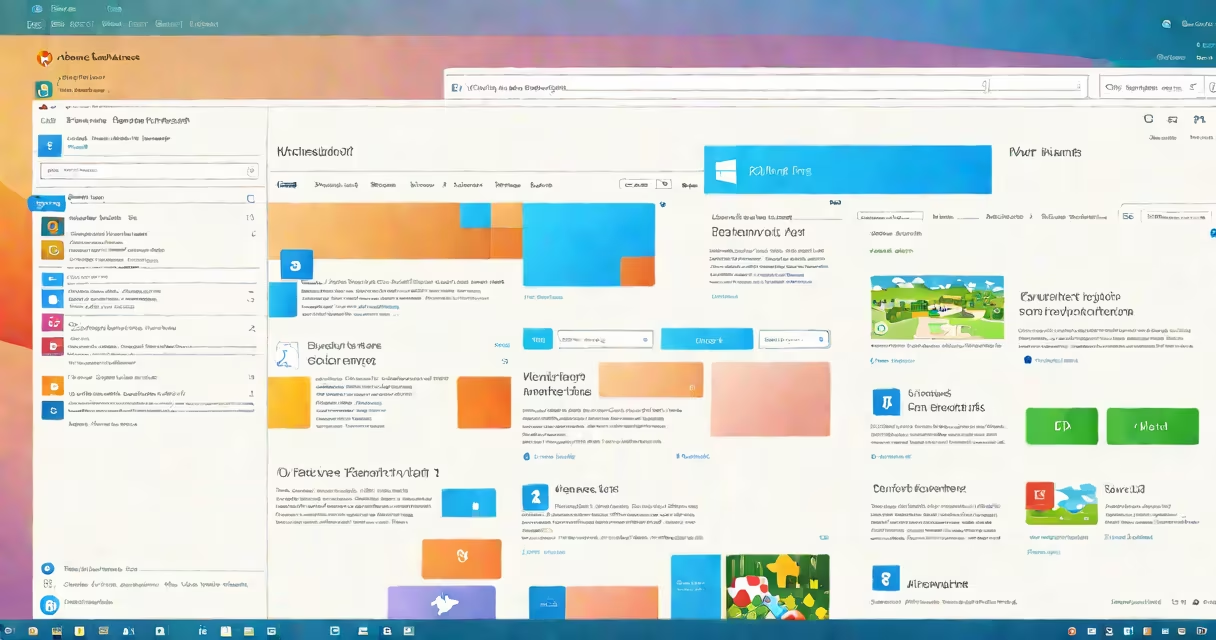
Software deinstallieren Win 11 means removing unwanted applications from your Windows 11 system using the built-in "Apps & features" panel or command-line tools. This process removes the program's files, registry entries, and associated components, preventing clutter and security risks.
Windows 11 includes a dedicated interface for managing installed software. Access it via Settings → Apps → Apps & features. Select the application, click Uninstall, and confirm. The system runs the program's built-in uninstaller, which handles file removal and registry cleanup. For older or poorly coded software, manual steps may be needed.
Some programs leave behind residual data-registry keys, cache folders, or configuration files-even after standard uninstallation. These fragments can slow performance or cause conflicts. To fully remove such software, use advanced tools like PowerShell commands or third-party uninstallers that scan for leftovers. Always verify the program name and publisher before removing.
When you select "Uninstall" in Apps & features, Windows queries the Windows Registry for the program's uninstall entry under HKEY_LOCAL_MACHINE\SOFTWARE\Microsoft\Windows\CurrentVersion\Uninstall. Each entry contains a path to the uninstall executable (e.g., C:\Program Files\MyApp\uninst.exe).
Windows then launches the uninstaller with elevated permissions if required. The tool typically removes program files, deletes shortcuts, and cleans up registry entries. Some installers also modify system paths or register COM objects. The uninstaller reverses these changes during removal.
If the uninstaller fails or is missing, Windows displays an error. In such cases, manually locate the uninstall executable in the program's installation folder or use the command line with msiexec for MSI-based installations. For example: msiexec /x {GUID}, where GUID is the product code from the registry.
Different software types require different approaches. Most desktop applications are installed via .exe or .msi packages and are removed through their embedded uninstallers. System utilities, drivers, and background services often have separate management tools.
| Type | Removal Method | Common Example |
|---|---|---|
| Standard Application | Settings → Apps & features | Adobe Reader, Spotify |
| MSI Installer Package | Command line: msiexec /x {ProductCode} | Microsoft Office, Visual Studio |
| Portable App | Delete folder manually | 7-Zip portable, Notepad++ portable |
| Driver/Service | Device Manager or sc delete | Printer drivers, antivirus agents |
Portable applications don't install to the system and aren't listed in Apps & features. They run from a folder and can be deleted by simply moving them to the Recycle Bin. Be cautious: some portable tools store settings in the same directory. Back up config files before deletion.
Users often assume that deleting a program's folder from Program Files removes everything. This leaves behind registry entries, scheduled tasks, and service configurations. The system may still reference the old path, causing errors or crashes.
Another mistake is skipping the confirmation prompt in Apps & features. Some programs display a warning about dependencies. Clicking "Uninstall" without reading the message can break other software. Always check the program's documentation or review the uninstall log if available.
A non-obvious issue: Windows 11 hides certain system apps (like Xbox Game Bar or Photos) from the Apps & features list. You cannot remove them through the GUI. Use PowerShell to list and remove them. Run Get-AppxPackage -AllUsers | Where-Object {$_.Name -like "*Photos*"} | Remove-AppxPackage to remove the Photos app.
I once encountered a browser installer that added a custom search engine and modified the default homepage. Standard removal via Apps & features failed-the uninstaller was corrupted. The program left a folder at C:\Program Files\CustomBrowser and a registry key under HKEY_CURRENT_USER\Software\Microsoft\Windows\CurrentVersion\Run.
To fix it, I opened Command Prompt as Administrator and ran:
cd C:\Program Files\CustomBrowser
uninst.exe /S
The /S flag forces silent mode. When that didn't work, I used Process Monitor to trace registry writes during startup. I found the rogue entry in HKCU\Software\Microsoft\Windows\CurrentVersion\Run and deleted it manually via regedit.
After rebooting, the program no longer launched at startup. I then used the built-in Disk Cleanup tool to clear temporary files and free up space. Full removal required both manual and automated steps.
Many users think "deinstallieren" means deleting the program folder. That's incomplete. A proper deinstallation removes all traces: files, registry entries, services, and scheduled tasks. Leaving behind even one component can lead to instability.
Also, users sometimes confuse "uninstall" with "disable." Disabling a program in Settings doesn't remove it. The files remain, and the program can still run in the background. For example, disabling OneDrive doesn't delete cached files or stop sync processes.
Another misconception: that Windows automatically removes all user data. It does not. Personal files like documents, settings, or saved sessions are stored separately-usually in C:\Users\{Username}\AppData. These must be deleted manually or through the program's export/import feature.
Always back up data before deinstallation. Some programs store encrypted preferences or license keys in hidden locations. If you reinstall later, you may lose access without a backup.
Proper software deinstallieren Win 11 ensures a clean system state. Use the official tools first, then verify with a file search or registry scan. For complex cases, combine PowerShell scripts with manual checks. Avoid third-party "cleaner" apps unless they're from trusted vendors like CCleaner or BleachBit.
Understanding how software deinstallieren Win 11 works prevents system bloat and improves long-term stability. Regular maintenance keeps your device running efficiently.