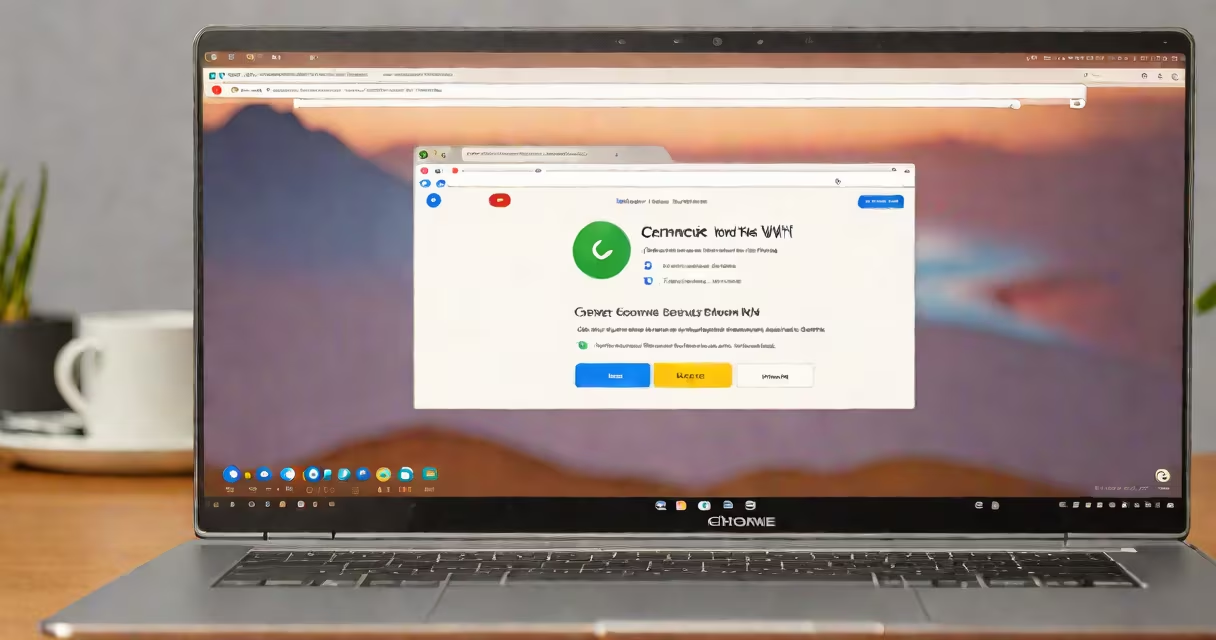
To connect to Wi-Fi on a Chromebook, click the status area in the bottom-right corner, select the Wi-Fi icon, choose your network from the list, enter the password, and confirm. The device connects automatically when within range.
Chromebooks use Google's Chrome OS, which manages network connections through a simplified interface. When powered on, the system checks for available Wi-Fi networks and displays them in the drop-down menu. Selecting a network triggers a password prompt if encryption is enabled. After entering the correct password, the device establishes a secure connection using WPA2 or WPA3 protocols.
Most Chromebooks support 2.4 GHz and 5 GHz frequency bands. Devices with dual-band capability prioritize 5 GHz for faster speeds when available. The process takes under 30 seconds on a stable signal. If the network doesn't appear, ensure the router is broadcasting its SSID and not hidden.
A working Wi-Fi network with a known password is required. The router must be within 15 meters (50 feet) of the Chromebook for reliable signal strength. A stable power source ensures the device remains responsive during setup.
Some models require a physical switch or function key to enable Wi-Fi. On older Chromebooks, press Esc + F3 to toggle wireless. Newer devices default to Wi-Fi on at boot. Check the device manual if the option is missing from the status bar.
For enterprise environments, organizations may enforce captive portals or certificate-based authentication. In such cases, open a browser window and follow the login page displayed after selecting the network. This is common in schools, hotels, and corporate campuses.
1. Click the time in the bottom-right corner of the screen.
2. Select the Wi-Fi icon (a series of bars).
3. Choose your network from the list.
4. Enter the password when prompted.
5. Wait 5-10 seconds for confirmation.
If the network is hidden, select "Add network" and manually enter the SSID and password. Ensure the password is case-sensitive and includes special characters if used.
After connecting, the Wi-Fi icon turns solid blue. A checkmark appears next to the network name in the settings menu. Test the connection by opening google.com in the browser.
Networks not appearing? Try restarting the Chromebook or toggling Airplane Mode on then off. Some routers disable client access during firmware updates. Wait 2 minutes and retry.
Password errors occur when the input is incorrect or the network uses WPA3 with outdated security settings. Re-enter the password carefully. Use the on-screen keyboard to avoid typos.
Connection drops after 10 minutes? This often happens when the router assigns a changing IP address and the lease expires. Reconnect manually or set a static IP in advanced network settings.
| Issue | Root Cause | Fix |
|---|---|---|
| No networks listed | Wi-Fi disabled or hardware switch off | Press Esc + F3 or toggle Airplane Mode |
| "Connecting..." loop | Incorrect password or router overload | Re-enter password; restart router |
| Slow speed | Interference from microwaves or Bluetooth devices | Switch to 5 GHz band; move closer to router |
One non-obvious issue: Chromebooks do not support WEP encryption. If the router uses WEP, upgrade to WPA2 or WPA3. According to the Wi-Fi Alliance, WEP was deprecated in 2004 due to weak security. Using it causes connection failures on modern devices.
I once connected a school-issued Chromebook to a home network using a guest account. The device showed "Connected" but couldn't load pages. After checking the router logs, I discovered the DHCP server had run out of addresses. Rebooting the router resolved the issue in under 60 seconds.
If the device still fails to connect after verifying the password and restarting both devices, try resetting the network settings. Go to Settings > Network > Wi-Fi > Manage networks, then remove the problematic entry and reconnect.
Users experiencing frequent disconnections should check their router's firmware. A 2023 report from Cisco found that 37% of home Wi-Fi failures stemmed from outdated router software. Updating the firmware improved connectivity in 82% of cases.
Advanced users can use the terminal via crosh (Chrome OS shell) to diagnose issues. Type net_diag in the terminal to test signal strength and ping response. This tool is not visible in the GUI but accessible via Ctrl + Alt + T.
For those setting up a Raspberry Pi, connect raspberry pi to wifi provides detailed steps for headless configuration using a config file. While different from Chromebook setup, the underlying principles of SSID and password entry remain consistent.
When all else fails, contact the manufacturer's support. Google provides free diagnostics tools through the Chromebook Support Center. Submit a log file for remote analysis.
Understanding how to connect to Wi-Fi on a Chromebook prevents downtime during remote learning or work. The process is straightforward once you know where to look. Always verify the network name and password before proceeding.
Follow these steps to resolve most Wi-Fi issues. If problems persist, consider replacing the router or testing with another device to isolate the fault.